 User guide
Get started#
Create one Pocpod identity and use it for both the portal and the mobile app. If you are joining an existing company, start from the owner's invitation: you will still create your own account, but the invitation links that new account to the owner's account automatically.
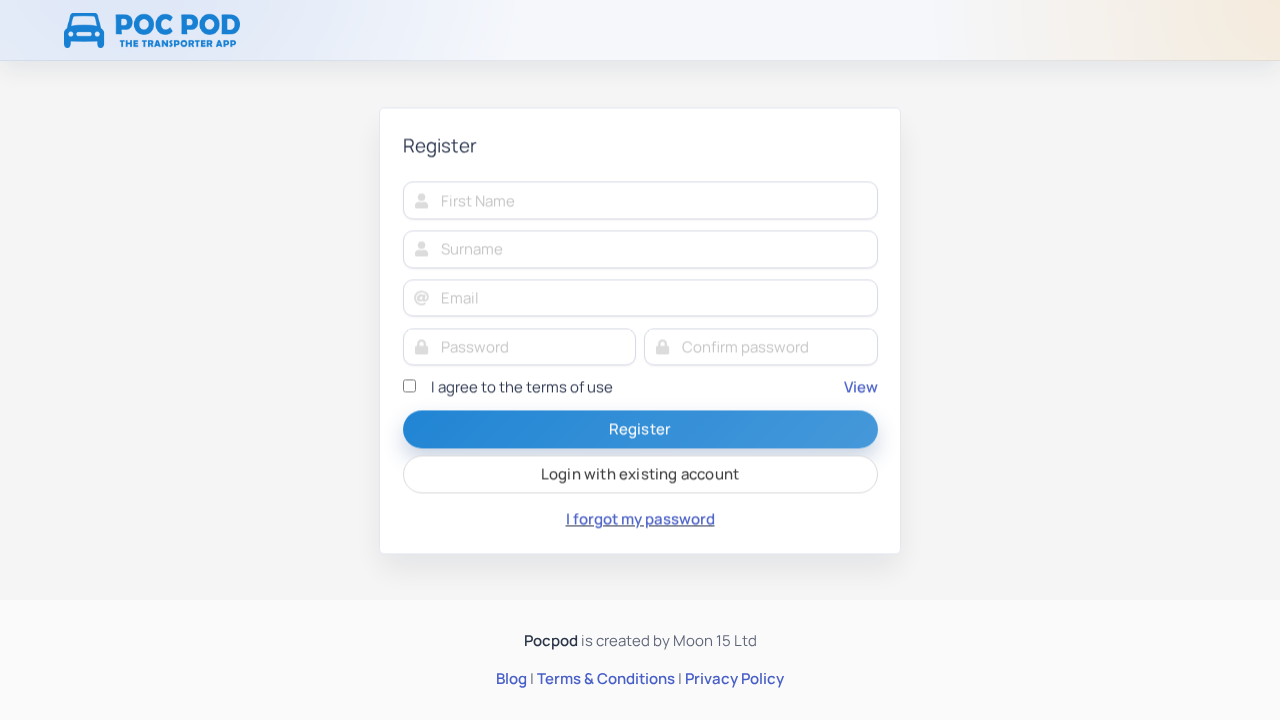
Create a new account#
- Open the Pocpod portal registration page.
- Enter your name, email address and a strong password.
- Read and accept the terms of use.
- Select Create account.
- After registration, sign in and confirm that the dashboard opens.
Use an email address you can access: invitations, password resets and service messages are sent there.
If you already created a separate account, you can still join the owner manually. Ask them for their share code, then open Account → Link to parent account in the Pocpod app and enter the code.
Sign in to the portal#
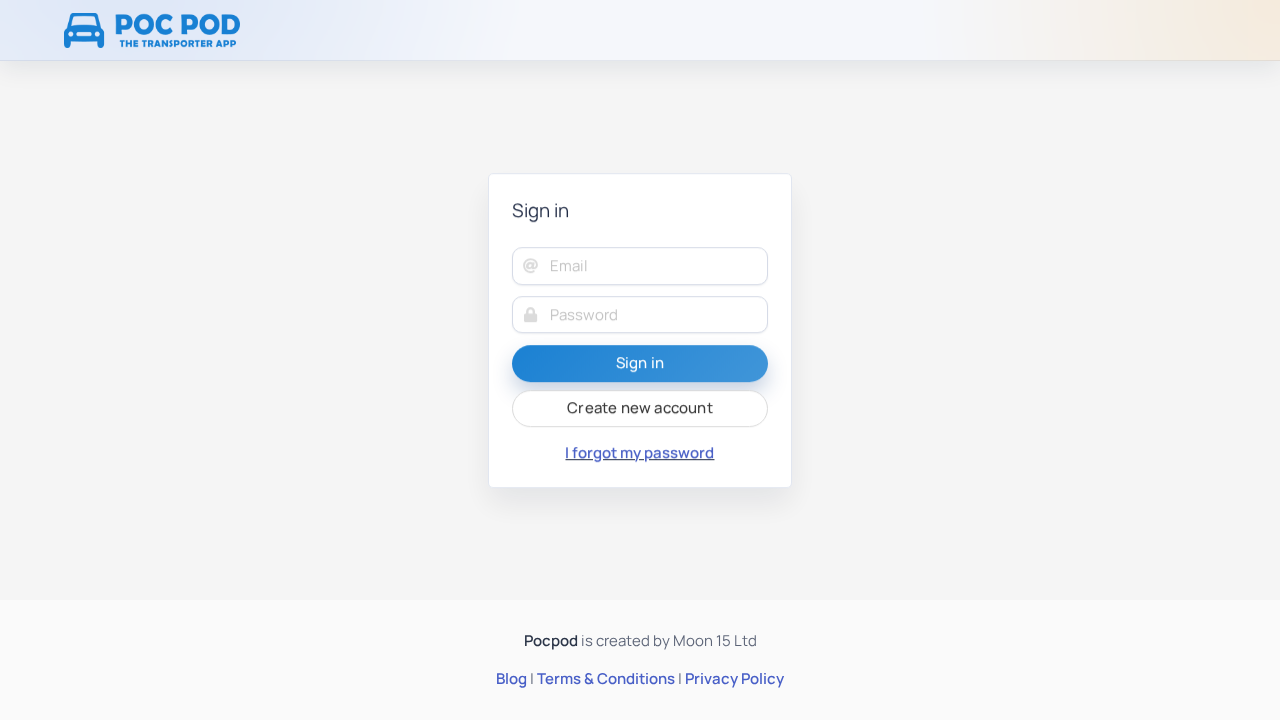
Enter your email and password, then select Sign in. The portal returns you to the requested page when possible; otherwise it opens the dashboard.
To sign out, open your name in the top-right corner and choose Log out. Always sign out on a shared computer.
Reset a forgotten password#
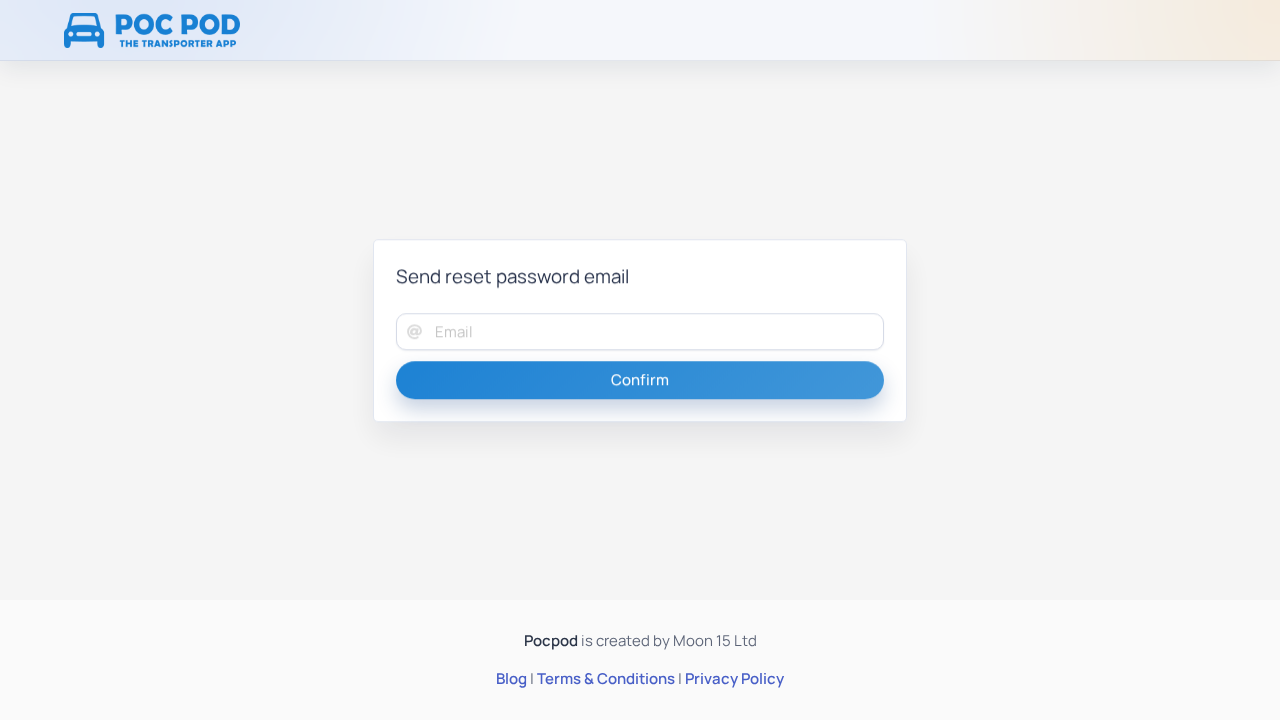
From the portal sign-in page, open Reset password, enter your account email and submit the request. Follow the link in the email to choose a new password, then return to sign in.
If the email does not arrive, check spam or junk folders and confirm that you entered the same address used for your account. A previous reset link may expire after a newer request, so use the most recent email.
Install and sign in to the app#
Install Pocpod from the appropriate app store for your Android or iOS device. Open it, enter the same email and password used for the portal, and select Log In.
Allow camera or photo-library access when asked; proof capture needs it. Notification permission is useful for work updates. Location access may improve the field workflow where enabled by your organisation.
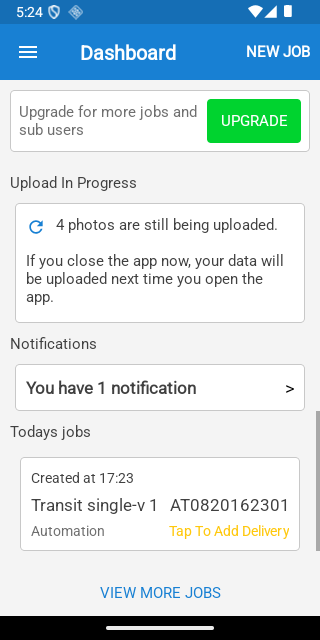
After sign-in the app opens the Dashboard. Use the menu to reach Dashboard, Planner, History, Contacts, Account, Web Portal, Settings and About. Owners may also see Sub Users.
Understand your first dashboard#
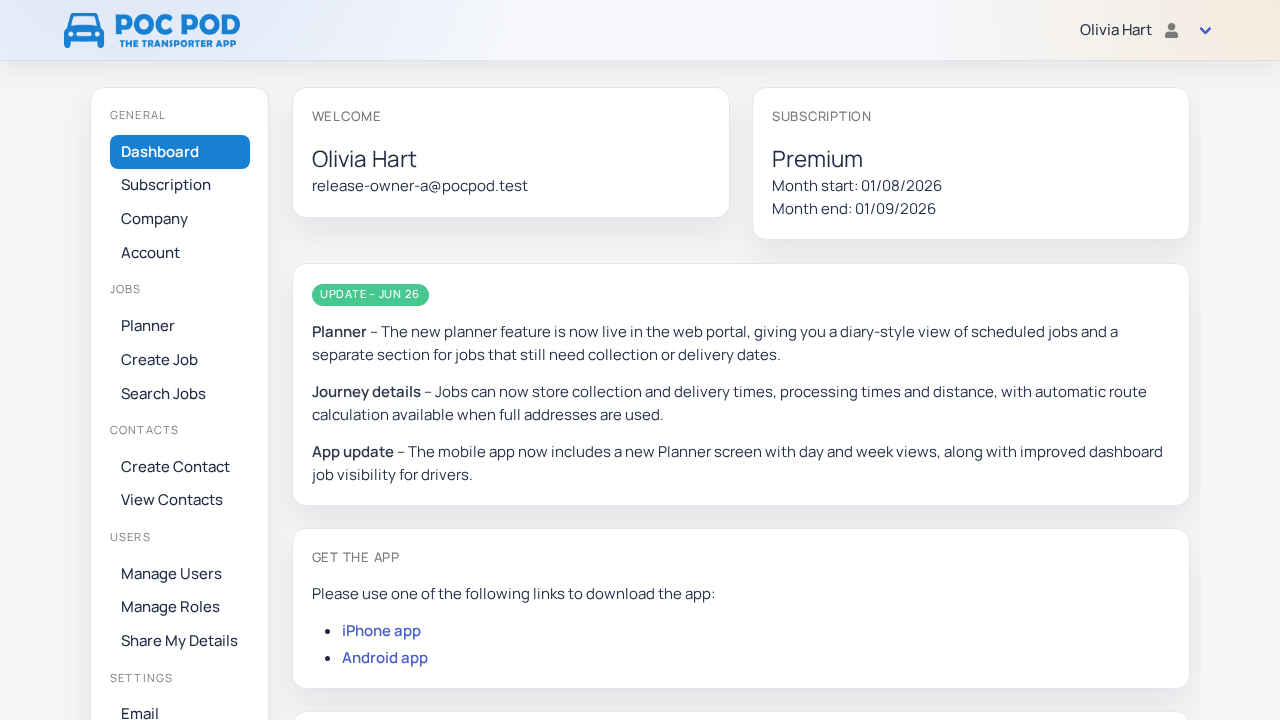
The portal dashboard is a landing page and account summary. The available actions depend on your subscription and permissions. Start by completing company settings, inviting colleagues and creating a contact or job.
The app dashboard focuses on operational work: today's jobs and outstanding work. Pull to refresh or use the app's update action if a newly assigned job is not visible.