 User guide
Subscription, account and help#
The subscription owner manages the Pocpod plan, billing and user capacity. Other users see only the account areas allowed by their role.
Choose free or paid#
Go to General → Subscription. Compare the limits and features shown for the available plans, including job/contact allowances and additional-user options. Choose the plan that fits the number of people and volume of work you expect.
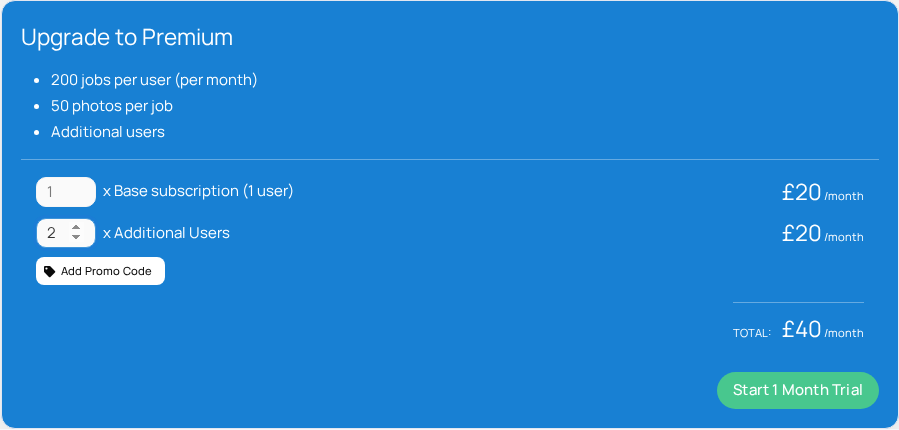
Review the current price, billing interval and added-user quantity before continuing to checkout. Payment details are collected through the secure billing flow; do not send card details to another user or support message.
Manage an active subscription#
After checkout completes, return to Subscription and confirm the active status, plan and user quantity.
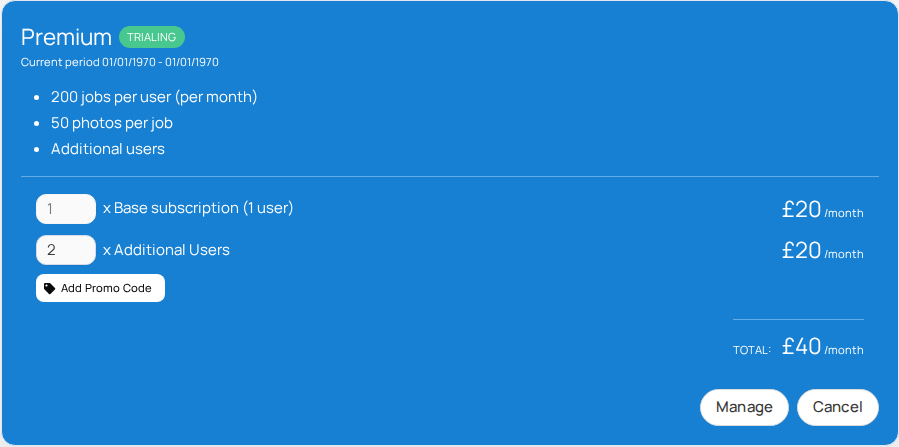
Use the available manage action to update billing information or plan details. Confirm changes only after reviewing the new total and effective timing.
Change user capacity#
Increase capacity before inviting a user when all places are occupied. Reducing capacity may require removing linked users first. After a capacity change, refresh Manage Users before sending a new invitation.
Roles control what users can do and do not change the number of users included in your subscription. Each person linked to the account uses one of the available user places.
Cancel or change plan#
Start cancellation or a plan change only from the subscription controls and read the confirmation dialog. Note the date access or paid features will change. Export or retain business records your organisation requires before service access ends.
If checkout returns to the portal but the subscription still appears unchanged, wait briefly and refresh. Payment confirmation can take a short time to reach the account.
Update your password and profile#
Use General → Account for your personal profile. Use the password-reset link from the sign-in screen when you cannot authenticate. Owners should maintain General → Company separately for shared business details.
Never share a login. Invite each person so actions can be attributed to the correct user.
Solve missing menus or actions#
Pocpod hides some entries when your role lacks permission. Ask the owner to check Manage Users and Manage Roles. After a change, sign out and in or restart the app.
If the owner cannot add users, check subscription capacity. If a driver cannot see a job, confirm assignment, invitation acceptance and sync.
Solve app syncing problems#
- Confirm the device has a working internet connection.
- Keep Pocpod open and refresh from the dashboard.
- Check History for the completed proof.
- Disable battery or data restrictions that prevent background work, if your organisation permits.
- Do not clear app storage or reinstall while work is unsynchronised.
- Record the job reference, device platform and approximate time if support is needed.
Protect customer data#
Use individual accounts, minimum necessary permissions and device locks. Check report recipients before sending. Sign out of shared portal devices and avoid storing invitation or public report links in open channels.
Screenshots and examples in this guide use demonstration data; use your organisation's own data-handling rules for live records.
Prepare a useful support request#
Include your account email, company, portal or app, Android/iOS version where relevant, the job reference, what you expected, what happened and the approximate time. A screenshot of the visible error is useful, but redact unrelated personal or payment information.
Never include your password, full card details or a customer's signature in a general support message.