 User guide
Users, roles and access#
A subscription owner controls who belongs to the business and what each person can do. Set up roles before inviting a large team so every user starts with appropriate access.
Add space for additional users#
Open General → Subscription and review the number of users included in the plan. Increase additional-user capacity before inviting more people if the subscription is already full. Confirm any price change shown before continuing.
A user place is capacity, not an invitation. After adding capacity, still invite the person from Manage Users.
Invite a user#
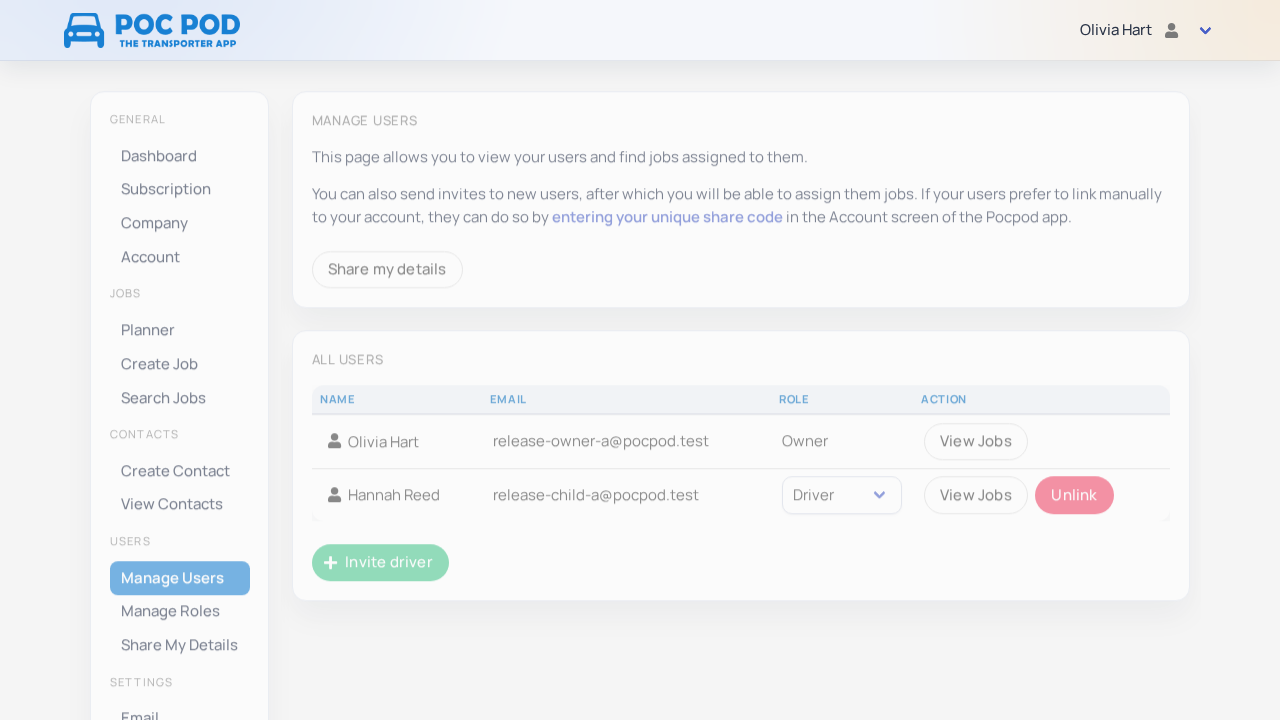
- Go to Users → Manage Users.
- Start the invite action and enter the person's details.
- Assign a role if prompted.
- Send or copy the invitation link using the available email, clipboard or messaging action.
- Ask the person to open the invite while signed into the account they intend to use.
Once accepted, the linked user appears in the list. Pending invitations can be reopened so you can resend the link.
Create a role#
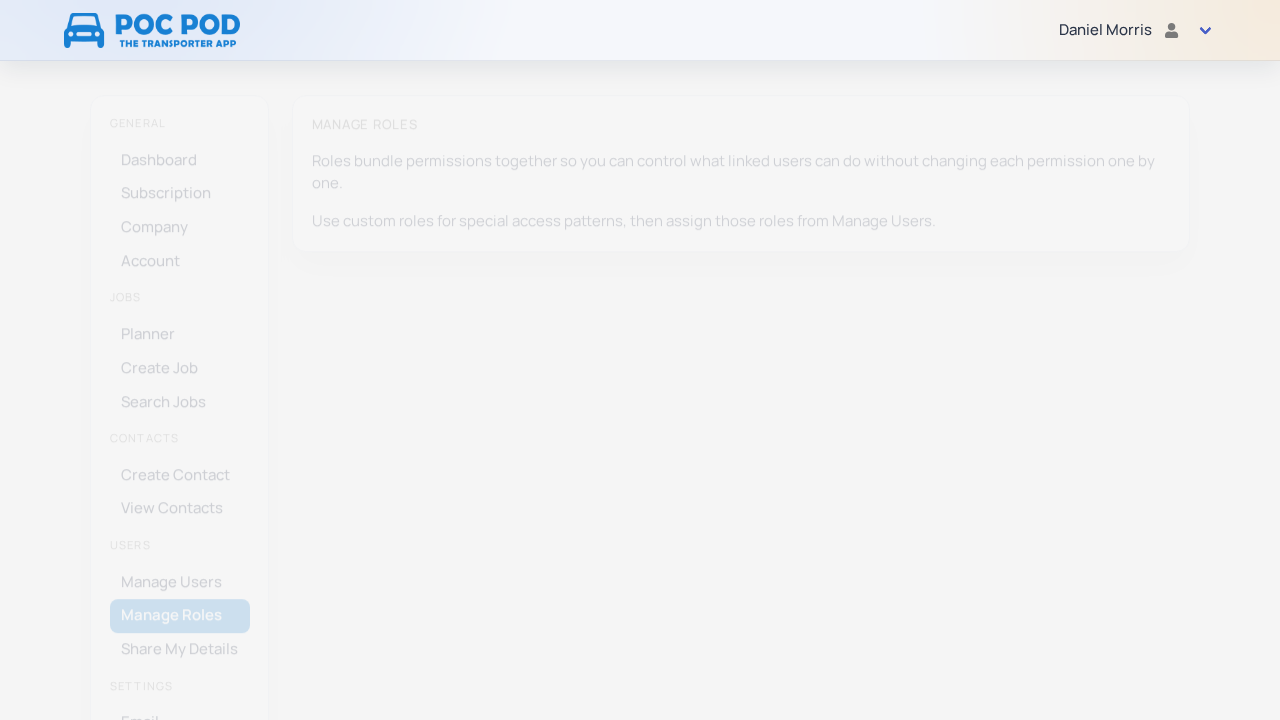
Go to Users → Manage Roles, then choose the action to create a role. Give it a recognisable job-based name such as Driver, Planner or Office Administrator.
Enable only the permissions that role needs. Typical controls cover creating jobs, managing contacts, managing users, managing roles, changing settings, editing the company and managing the subscription.
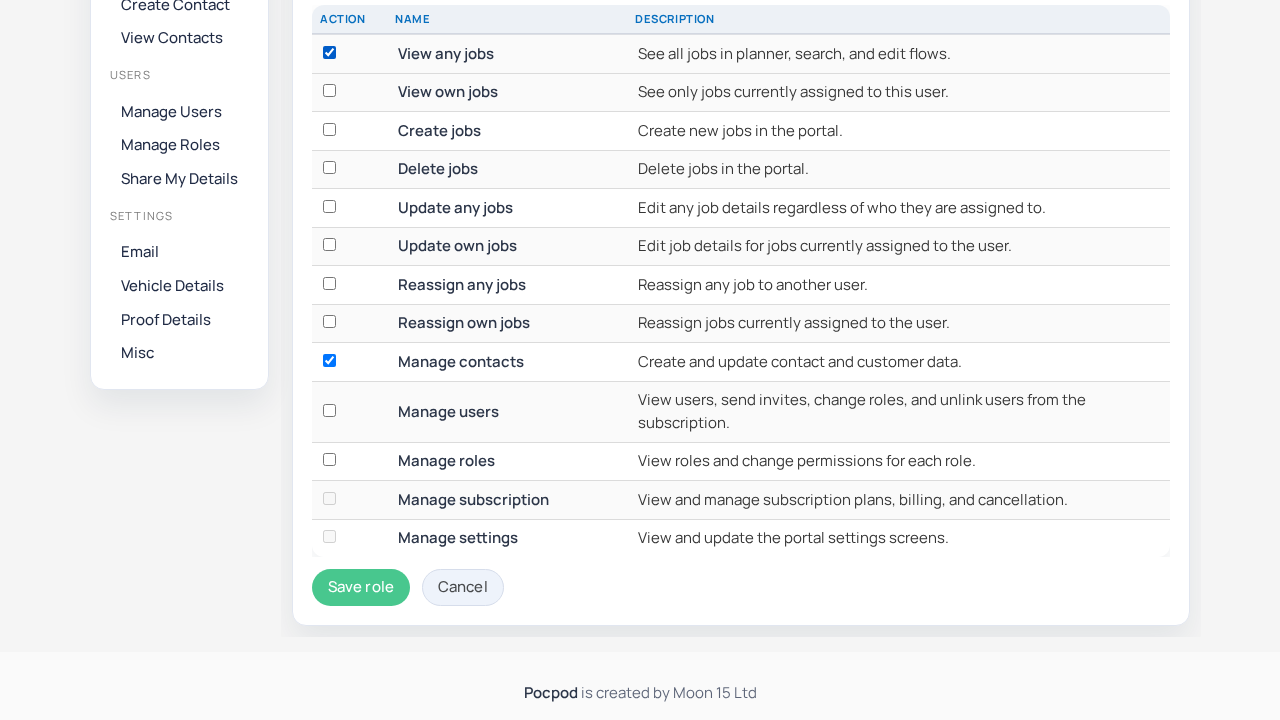
Keep subscription, company, role and user-management permissions for trusted administrators. A driver generally needs operational access, not account ownership controls.
Assign or change a user's role#
From Manage Users, open the relevant user and select the role. Save the assignment, then ask the user to refresh the portal or sync/restart the app if access does not change immediately.
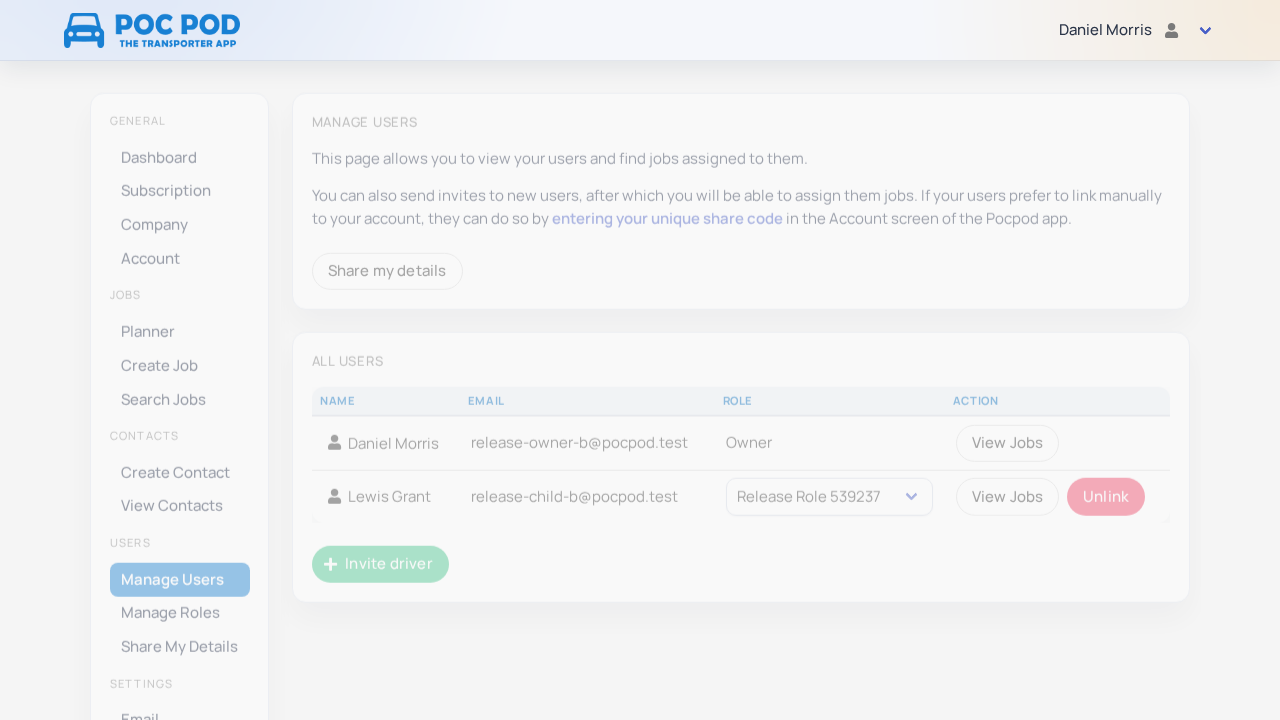
Changing a role affects every user assigned to it. If one person needs a unique combination, create a separate role rather than widening access for the whole team.
Understand restricted access#
Child or linked accounts see only features allowed by their resolved permissions. Owner-only menu entries may disappear rather than display an error. Direct links are also checked.
If someone cannot create a job, manage a contact or open a setting:
- Confirm they accepted the correct company invitation.
- Check the role assigned to them.
- Check that the role includes the required permission.
- Ask them to sign out and in again if the change is not yet visible.
Share your details to join another account#
Owners can use Users → Share My Details in the portal, or Sub Users in the app, to obtain the share code used by someone who wants to join their parent account. Send the code only to the intended person.
The person joining must first create and sign in to their own Pocpod account. In the app, they then open Account → Link to parent account and enter the owner's 10-character share code exactly. The owner can refresh the code if it has been exposed.
A user should belong to the correct parent subscription before jobs are assigned to them. Account linking can also cause pending jobs to become available to the invited driver.