 User guide
Reports and sharing#
A report turns a completed proof into a clear record for the customer and office team. It can include company, job, customer, vehicle, mileage, condition, photos, damage, notes, accessories and signature information.
Open a report from a job#
In the portal, go to Jobs → Search Jobs, open the job and view its history. Select the relevant collection or delivery proof, then open the report entry.
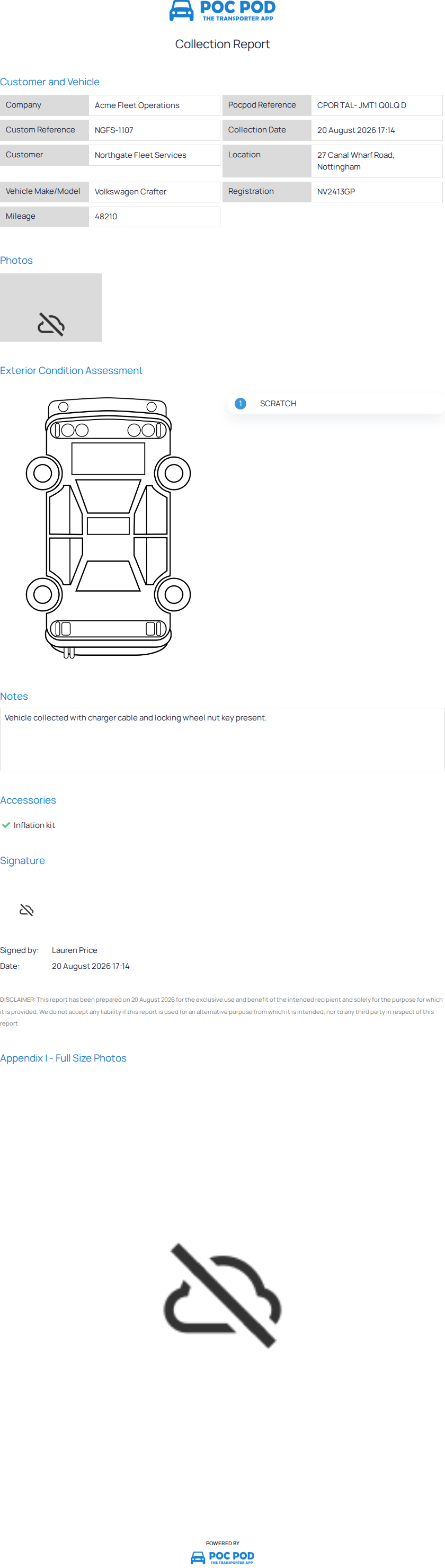
Always choose the correct proof when a job has both collection and delivery records.
Review the report#
Check the customer, vehicle and proof type first. Then review the recorded details, photos, damage, notes and signature before sharing.
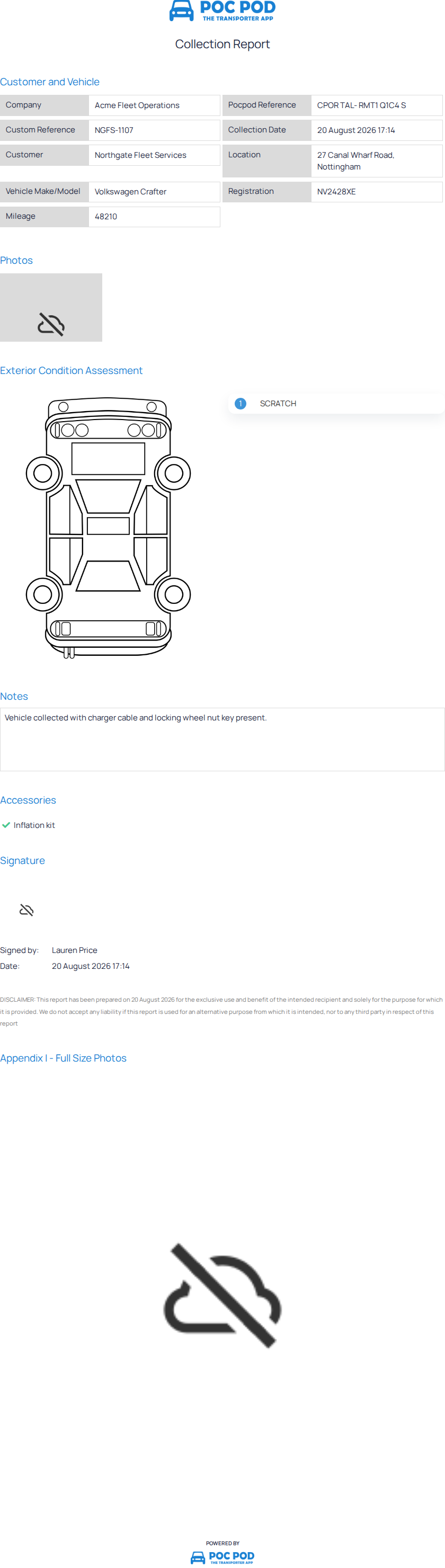
If information is incorrect, distinguish between a job detail that can still be edited and signed proof evidence that should remain auditable. Do not overwrite historical evidence simply to improve presentation.
Send a report from the app#
At sign-off, confirm the recipient email and complete the proof. If no internet connection is available, Pocpod stores the completed work locally and uploads it automatically when a connection becomes available again. Check History afterwards to confirm the proof is present.
The sender name and message can be controlled by the owner's Settings → Email configuration.
Automatically send customer reports#
A contact can be configured with Auto Send Report To Email so its email address is automatically populated during signing and the completed report is sent to that address. This saves time for repeat customers but does not replace the final recipient check.
If the wrong address appears, correct the contact in the portal and enter the intended recipient for the current report.
Share a report safely#
Pocpod can expose a report through a public viewing link so a recipient does not need a portal account. Treat that link as customer information:
- send it only to intended recipients;
- avoid posting it in public channels;
- verify the customer and vehicle before forwarding;
- contact support if a link has been shared incorrectly.
A report link gives access to the report, not to the rest of your Pocpod account.
Troubleshoot a missing report#
If a report is not available:
- Confirm the correct collection or delivery was completed in the app.
- Open History in the app and verify the proof exists.
- Reconnect the device and sync until it finishes.
- Refresh the job history in the portal.
- Check that you opened the right job and proof type.
- If email alone is missing, verify the recipient address and sender configuration.
Do not repeat the physical proof unless the original genuinely failed to save; duplicate proofs can confuse the audit history.