 User guide
Jobs in the portal#
A job is the operational record for one movement. Office users can create it, schedule it and assign it; drivers complete collection and delivery proofs in the app.
Create a job directly#
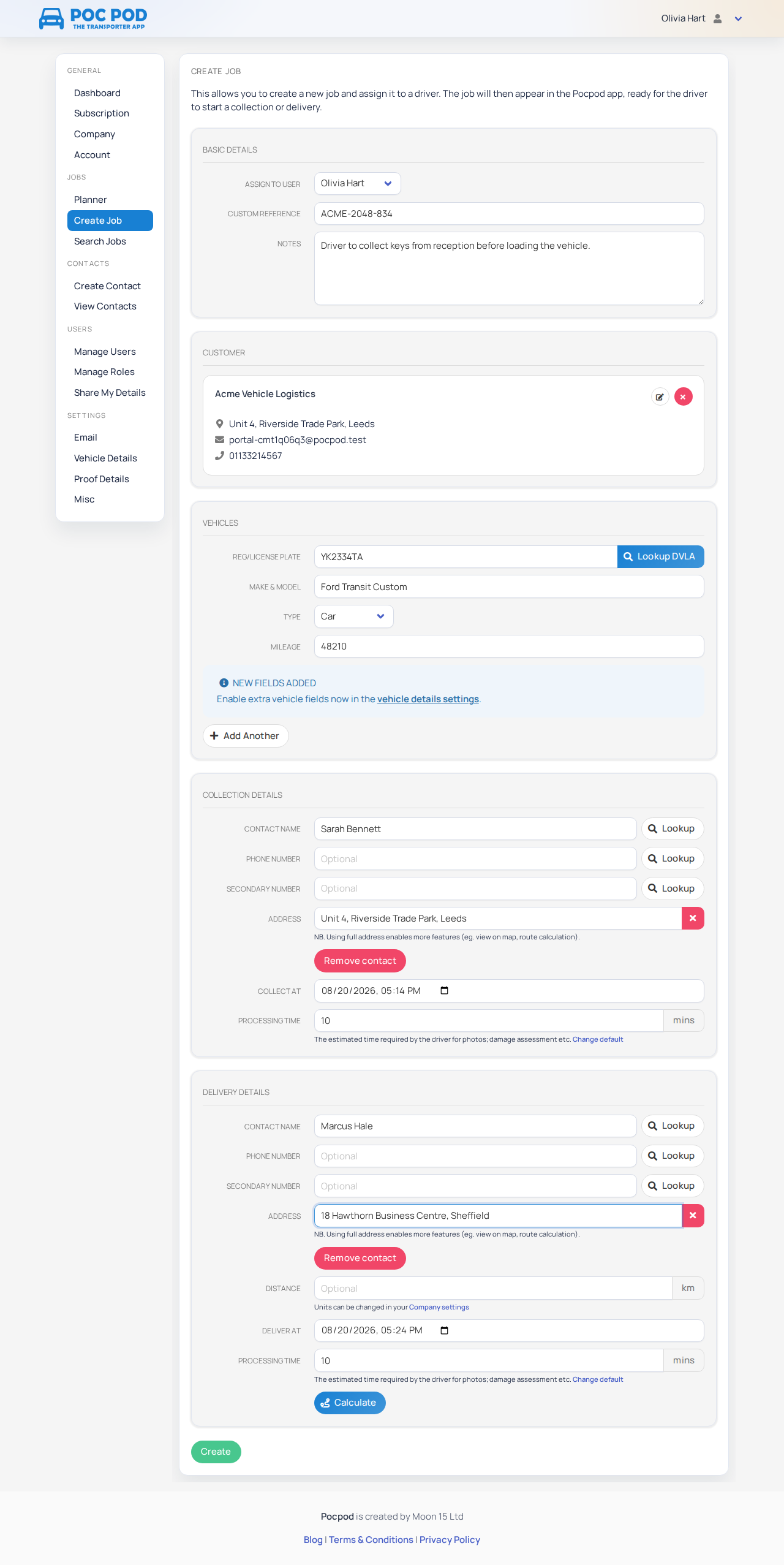
- Go to Jobs → Create Job.
- Choose or enter the customer and collection/delivery information.
- Add the vehicle registration, type, make/model and any enabled details.
- Add schedule dates, notes and a custom reference where needed.
- Assign the appropriate user.
- Review the form and save.
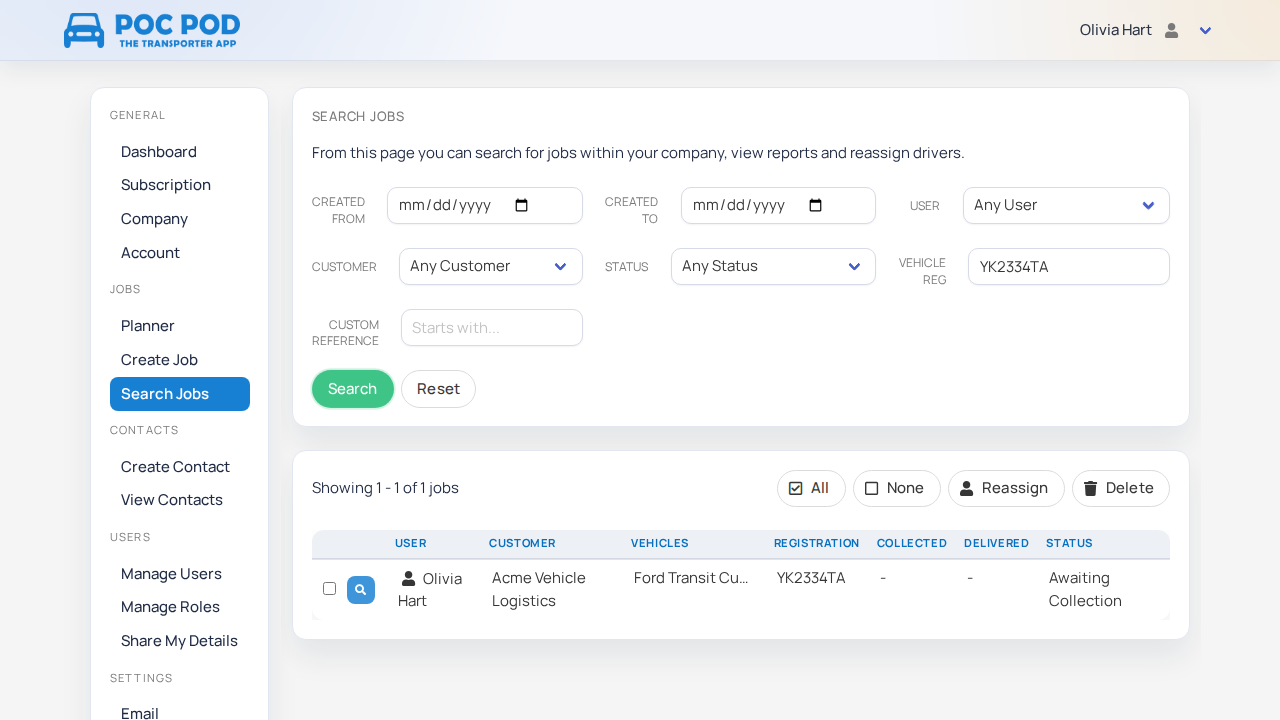
After saving, search for the job using a distinctive registration or reference to confirm it was created.
If invoicing is enabled and you have Manage customer billing permission, the Billing section can create a billing draft with this job. Pocpod estimates the amount from the journey distance and the applicable distance rate, but you should review the amount, tax and deposit choice before saving. See Invoice customers and take payments.
Look up a UK registration#
On the vehicle section of Create Job, eligible UK accounts can enter a registration and use Lookup DVLA. Pocpod can fill available vehicle data such as make, colour, engine capacity, weight, fuel type and year.
Check every returned value and enter anything missing. VIN is not supplied by the DVLA lookup. If lookup is unavailable, continue with manual entry; repeated requests may be temporarily limited.
Calculate distance and journey time#
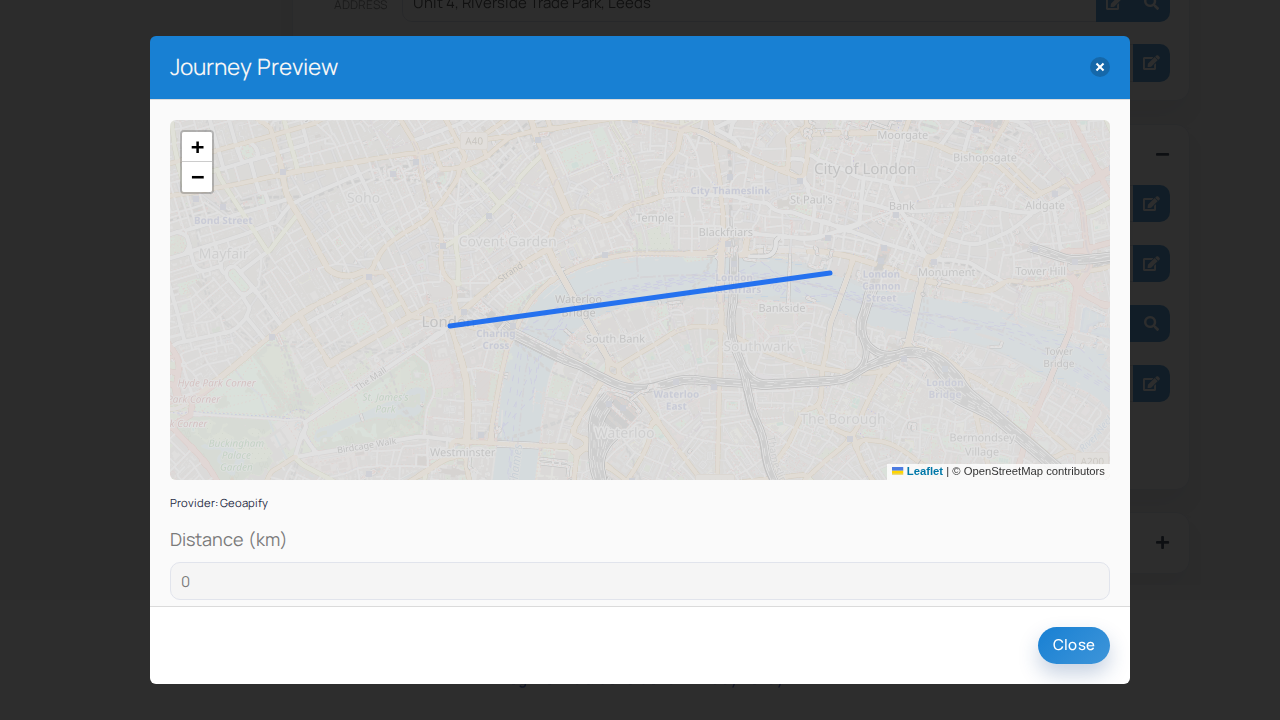
With valid collection and delivery locations, open the route preview. Pocpod displays the proposed route, distance and estimated duration. Use the fuller map when you need to check the path.
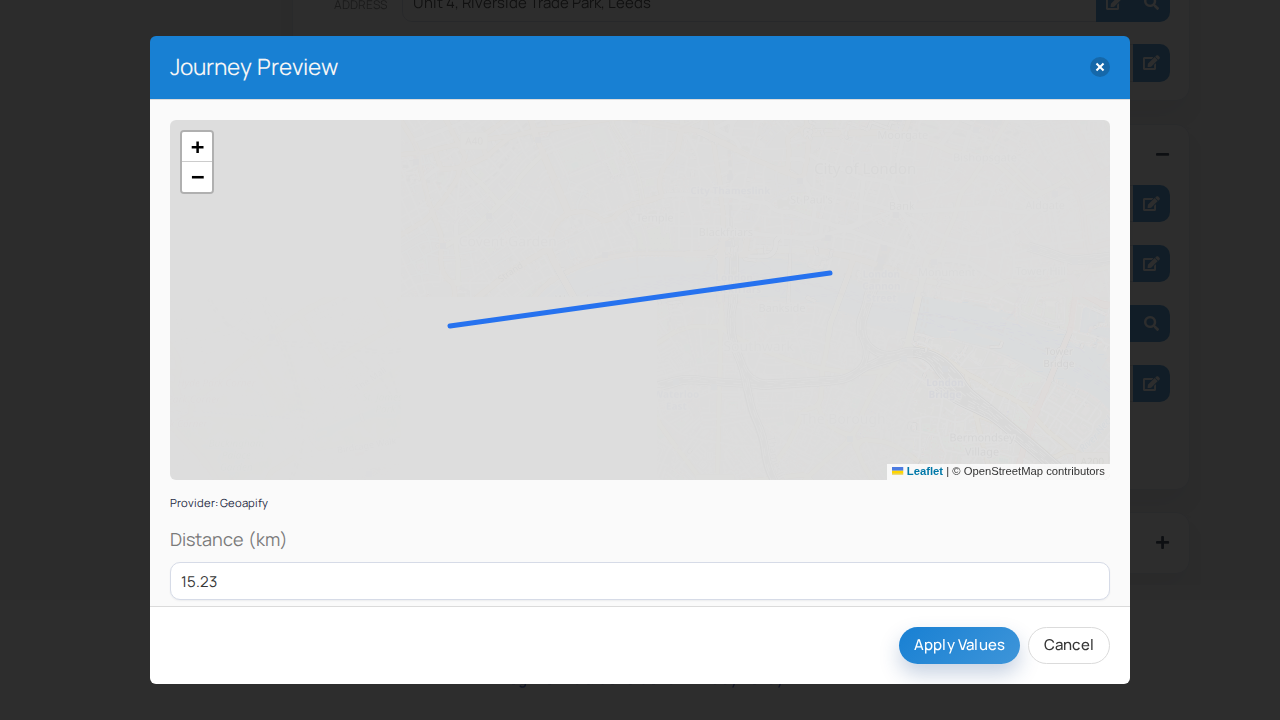
Treat journey time as an estimate. Traffic, loading and vehicle restrictions may change the actual duration.
Search for jobs#
Go to Jobs → Search Jobs. Use the available filters such as reference, registration, customer, date, user or status, then run the search. Clear overly specific filters if no results appear.
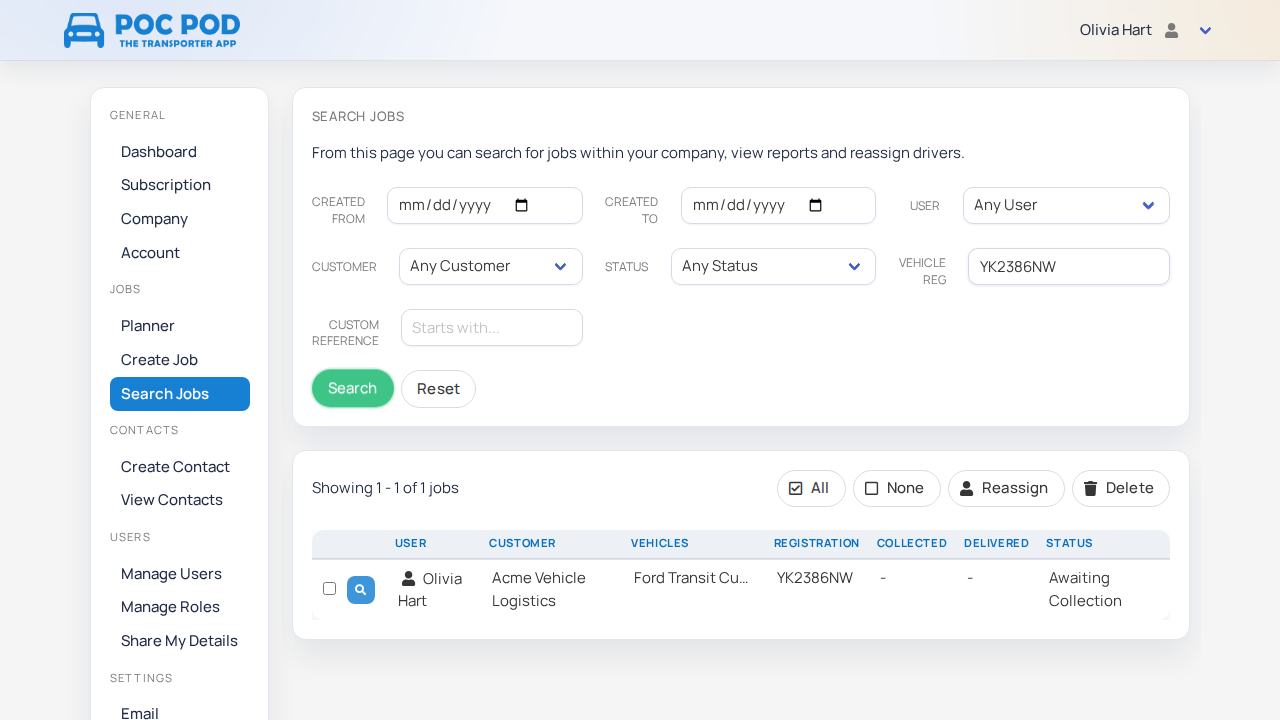
Select a result to open it. Search is also the safest starting point for editing, reassigning, viewing history or deleting a job.
The Billing column shows + Add when no billing arrangement exists or View when one does. Selecting + Add starts a draft with that job and its customer already filled in.
Edit job details#
Open the job from search results. Update the allowed fields and save. Some completed or proof-backed details may be read-only to preserve the audit record.
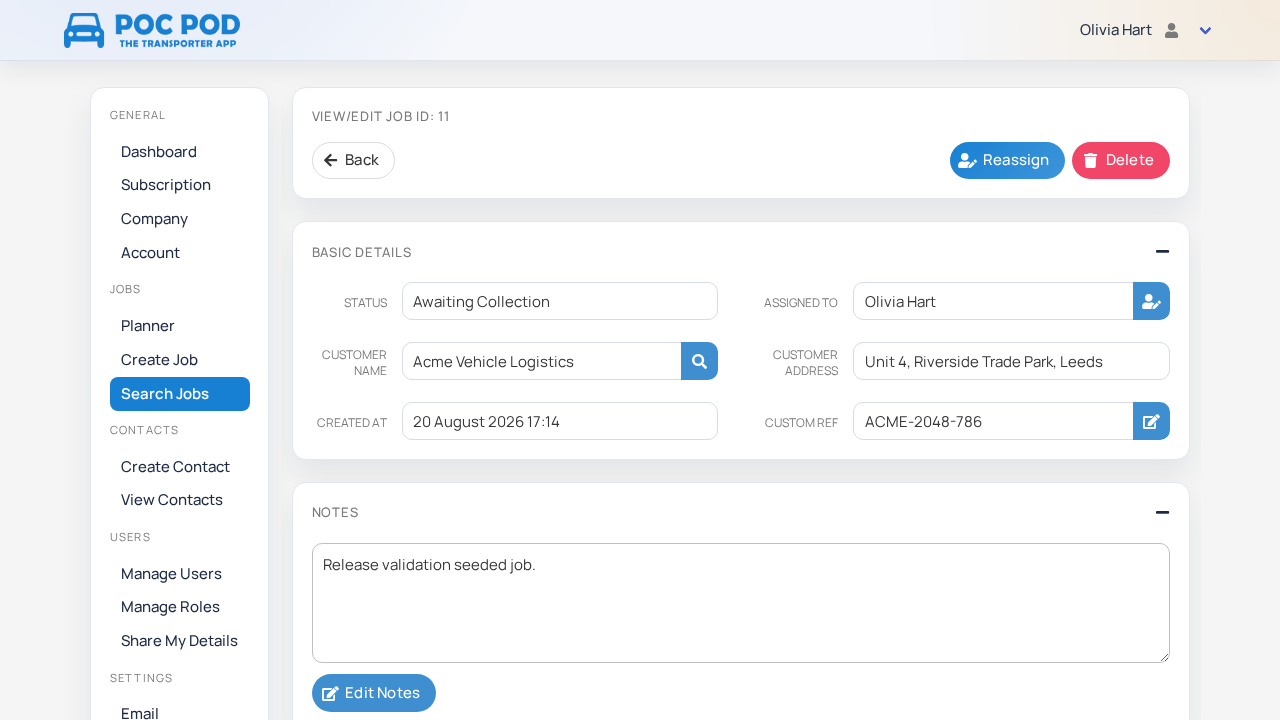
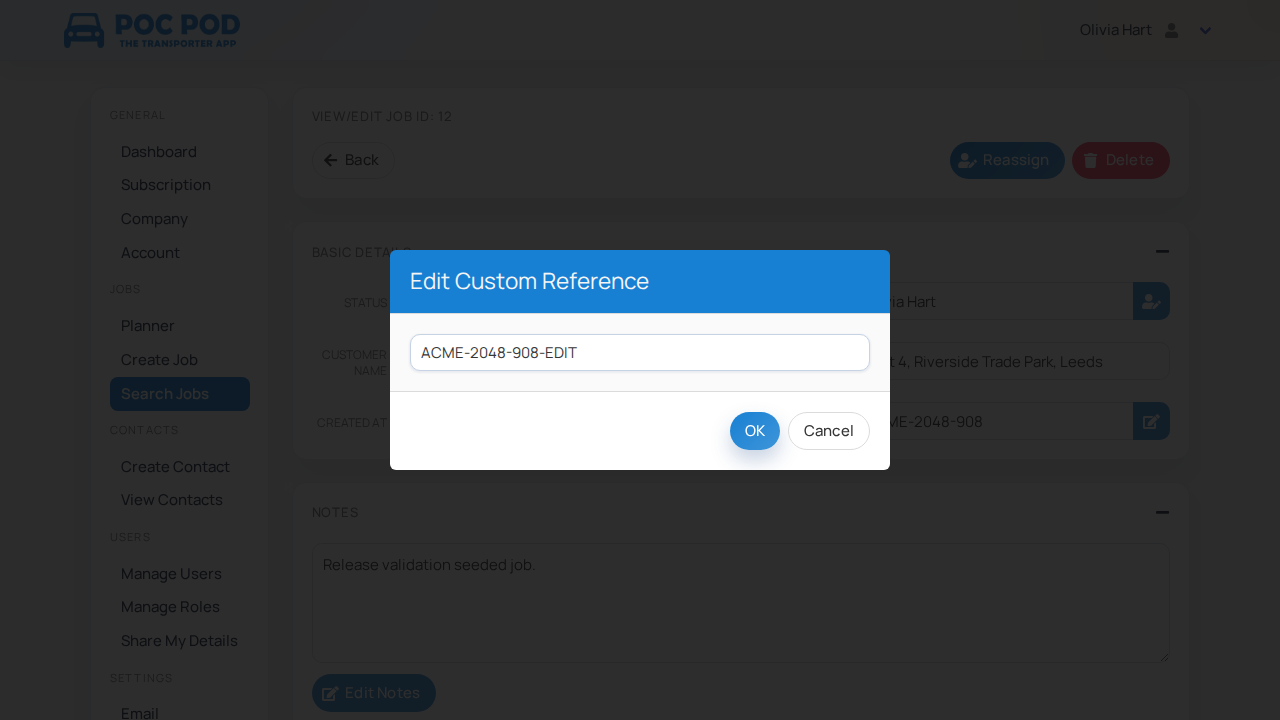
Use focused actions for details such as a custom reference.
Copy a job#
Open the job from Jobs → Search Jobs, then choose Copy job. In the dialog, choose whether to use the original collection and delivery locations, swap them for a return journey, or enter new locations. The preview shows which details will become the new collection and delivery stops.
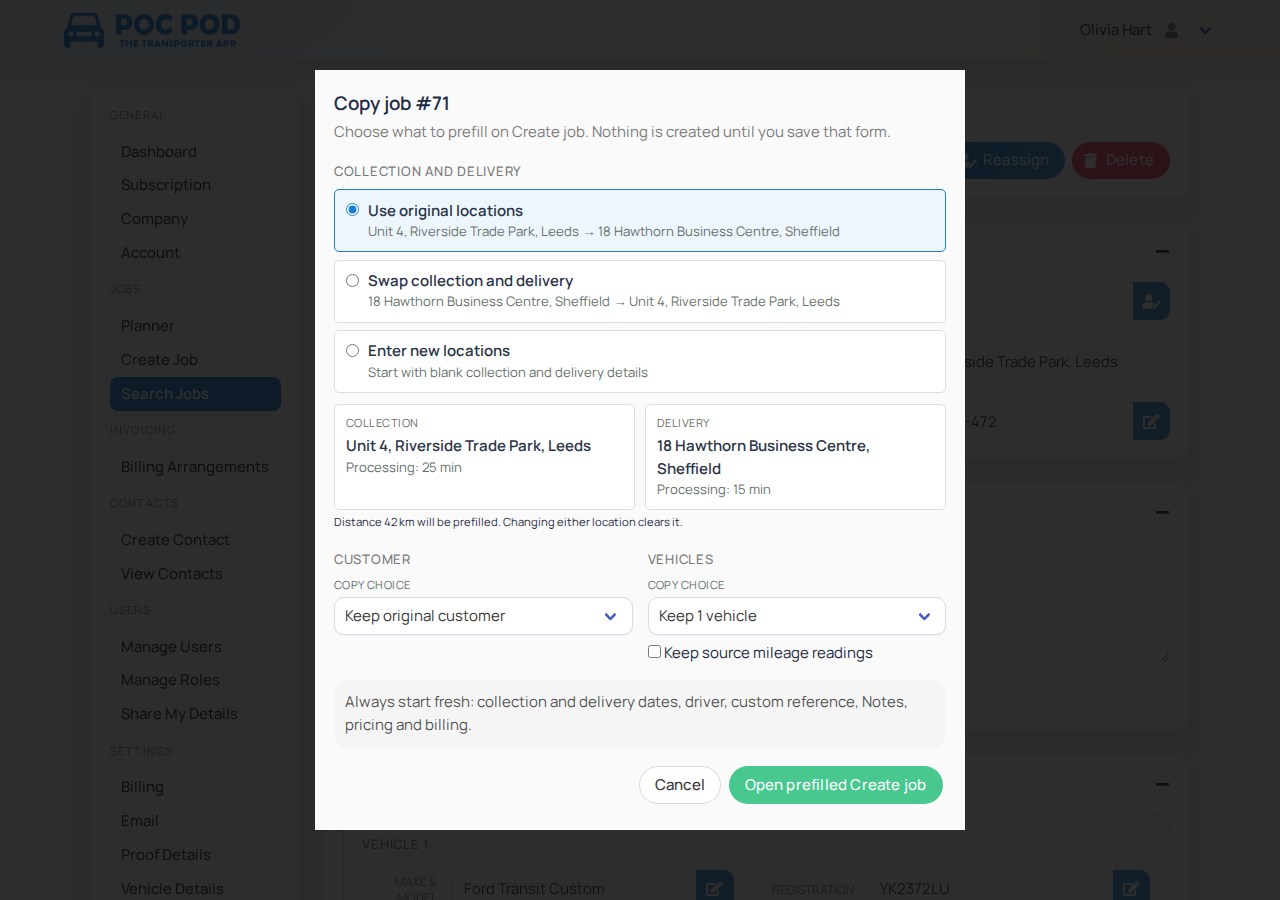
Choose whether to keep the customer and vehicles. If you keep the vehicles, you can also choose whether to bring across their mileage readings. Select Open prefilled Create job to review and edit the new job form. This does not save a job.
Enter new collection and delivery times, choose a driver if your account permits it, and review the customer, vehicle, location and processing details. If you use the original locations or swap them, an existing route distance is prefilled. Changing either address clears that distance; enter or calculate a new one. New locations start without a distance. Add a new reference or Notes if needed, and review any billing settings before choosing Create job. The original job remains unchanged.
Assign or reassign a job#
From the job actions, choose Reassign, select the linked user and confirm. The user must belong to the subscription and your plan must have sufficient capacity.
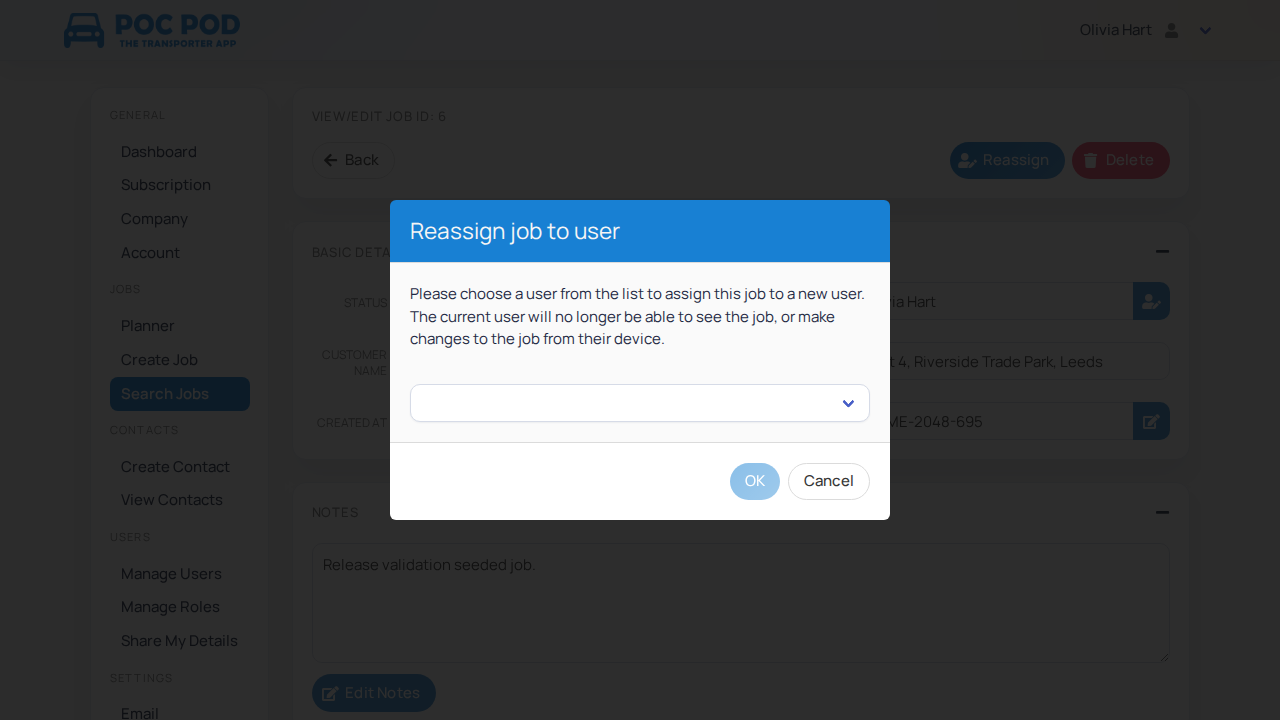
Ask the driver to sync the app. Reassigning controls who receives the work; it does not erase existing proofs or job history.
Delete a job#
Use the delete action from the job screen and read the confirmation carefully. Delete only incorrect or cancelled work. For traceability, Pocpod may retain an audit record even when a job disappears from normal lists.
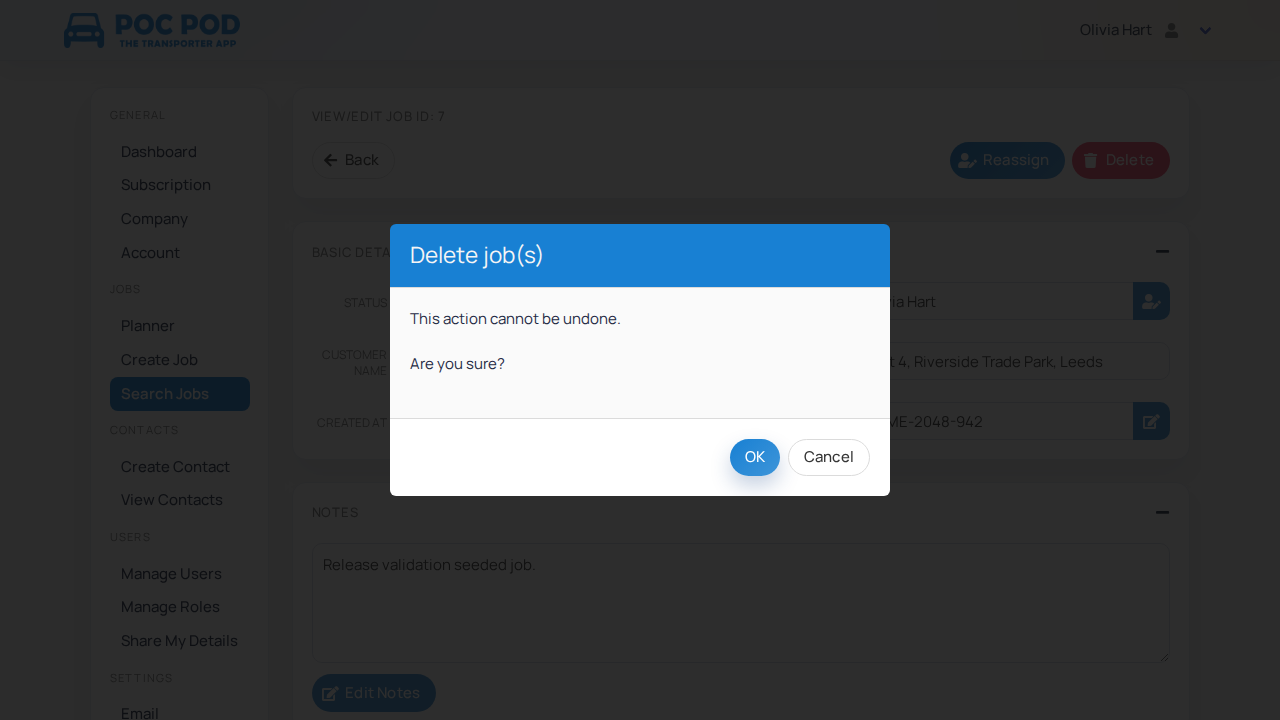
Review job details and history#
Open a job to review all of its details, including vehicles, photos and collection or delivery proof data. Use the proof sections to inspect the customer, recorded condition and sign-off information.
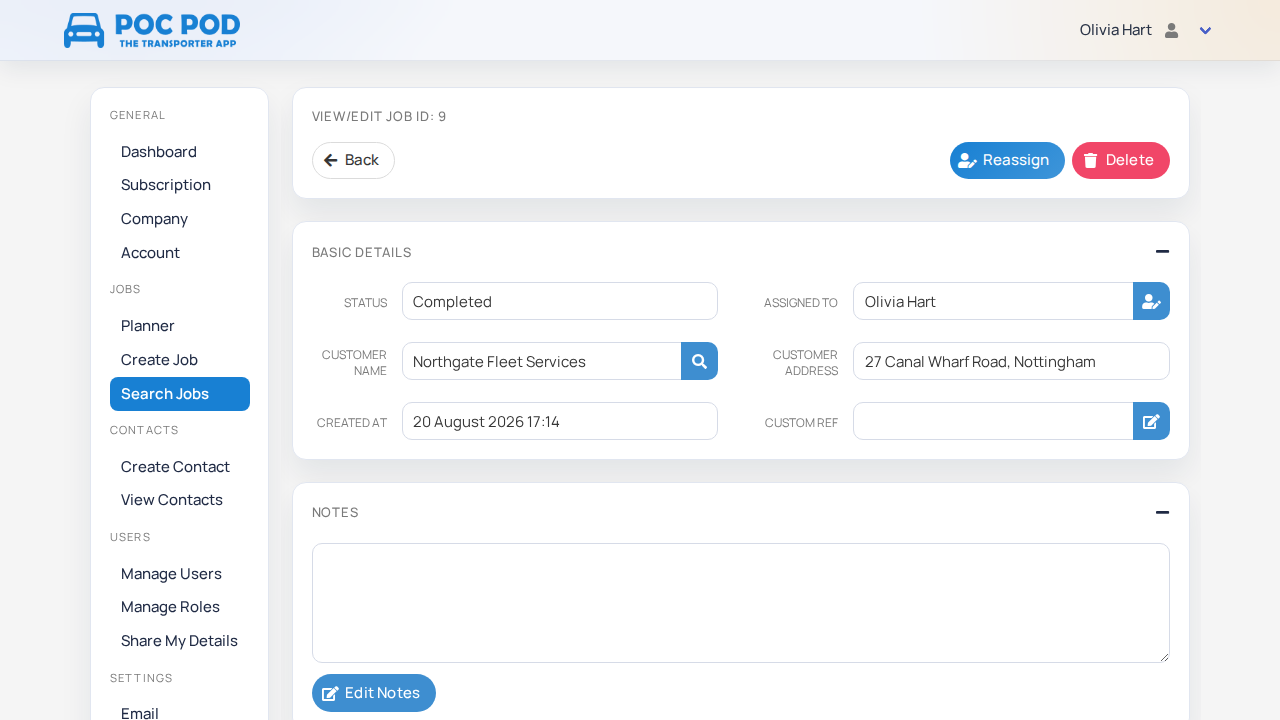
You can also review the job history, which shows a chronological record of changes made to the job. Changes made after a proof was completed are shown in a dedicated section on the customer report. Use the report entry on the proof to open that customer-facing output.
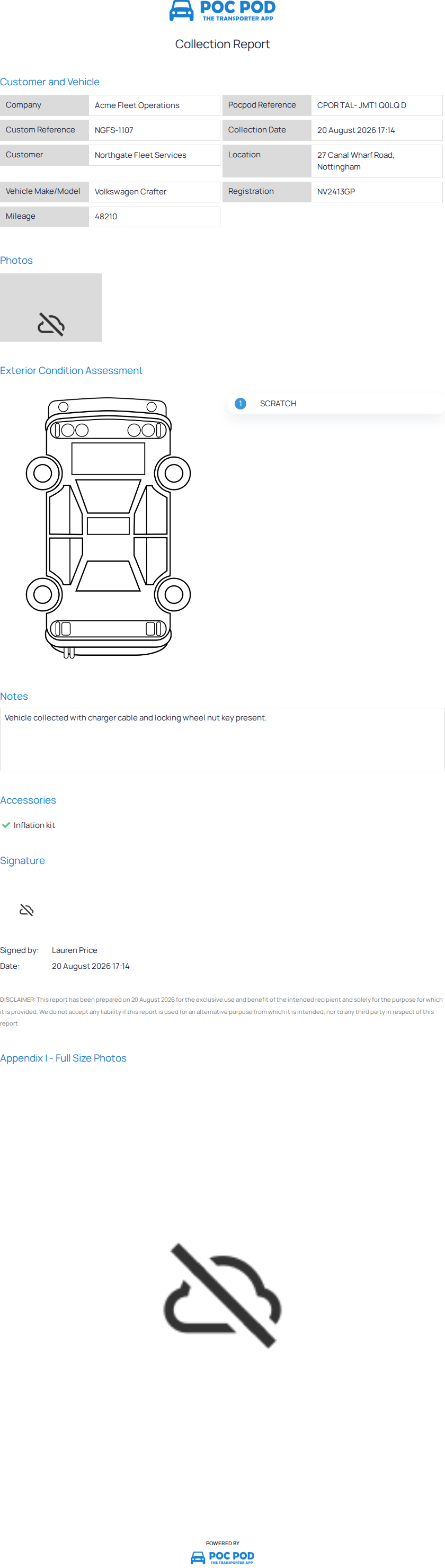
The Edit Job screen also has a collapsible Billing section above Audit History. Use it to view the linked arrangement or start a prefilled draft.
Know what must happen in the app#
The portal creates and manages the job, but field evidence is captured in the app. The driver opens the job and chooses collection or delivery, then completes customer, vehicle, photos, damage, notes/accessories and signature steps. The finished proof syncs back into this job.