 User guide
Invoice customers and take payments#
Pocpod can turn one or more vehicle jobs into a billing arrangement, send invoices through Stripe and show you when the customer has paid. You can request a deposit, collect the remaining balance when the work is complete, or send one invoice for the full amount.
You need the Manage customer billing permission to use these features. If the Invoicing menu is missing, ask an account owner to add that permission to your role.
Before the first live arrangement, make sure payment setup is complete, the customer is saved as a Pocpod contact with the correct invoice email, and at least one eligible job exists for that customer. One arrangement can group several jobs for the same customer, but a job cannot belong to two active arrangements.
Understand billing arrangements and invoices#
A billing arrangement is the working record between you and a customer. It contains the jobs, charges, tax treatment, deposit choice and payment terms. You can edit it while it is a draft.
An invoice is the payment request issued from that arrangement. It has its own invoice number and payment status. A billing arrangement can produce either:
- one final invoice for the complete amount; or
- a deposit invoice followed by a final invoice for the balance.
The deposit is part of the agreed total, not an additional charge. For example, a £120 total with a £25 deposit leaves £95 for the final invoice.
Stripe normally emails an issued invoice to the customer's saved address if invoice emails are enabled on the connected Stripe account. It also hosts the secure payment page and processes the payment. Pocpod keeps the arrangement, jobs, invoice status and email-delivery status together. Check that status before assuming the customer has received the invoice.
Set up invoicing and payments#
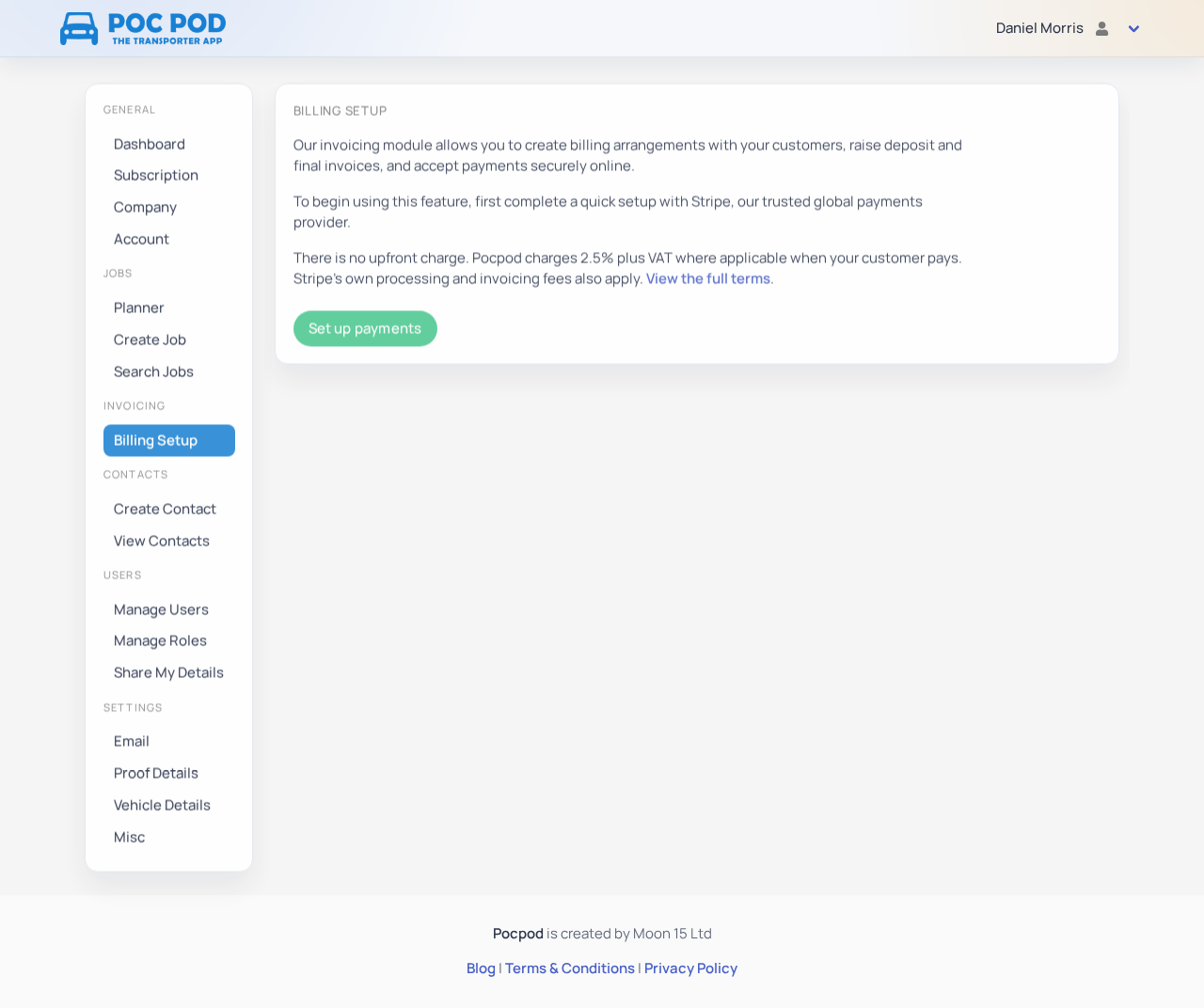
Before creating a billing arrangement, go to Invoicing → Billing Setup. Select Set up payments and complete Stripe's guided setup. Stripe asks for the business, representative, public and payout details it needs to verify the account. Enter the real business details and VAT number, if registered, that should be associated with customer payments.
If Stripe offers the optional Stripe Tax service during onboarding, select Not right now. Pocpod uses the tax percentage you set on each invoice line; enabling Stripe Tax is not required for this workflow and may incur separate Stripe charges.
There is no upfront Pocpod charge. Pocpod charges 2.5% plus VAT where applicable when your customer pays. Stripe's processing and invoicing fees also apply. The one-month free trial covers the Premium subscription charge only: if you collect a customer payment through invoicing during your trial, the Pocpod and Stripe payment fees still apply. Follow the link on the setup screen for the full terms.
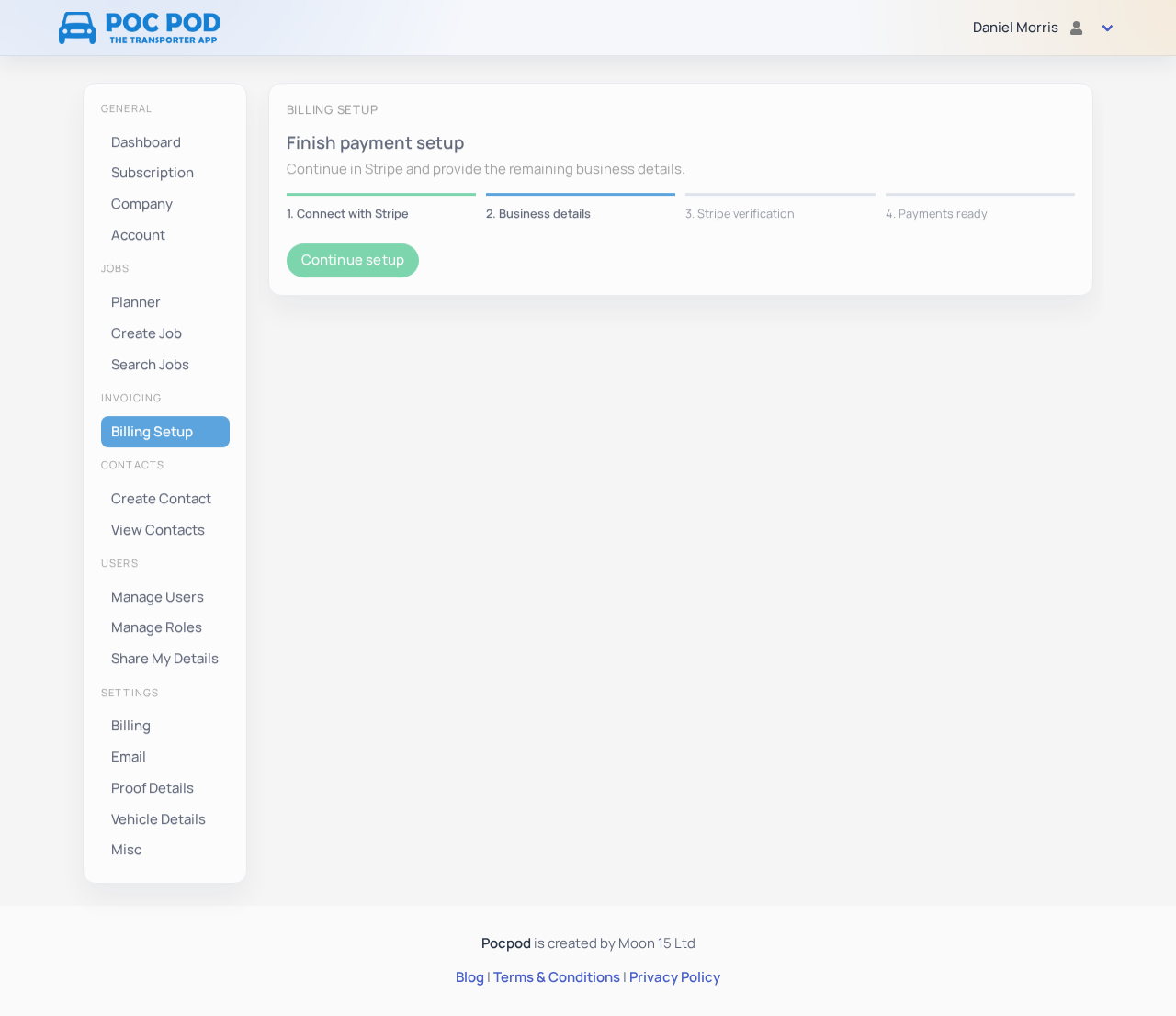
If you leave before finishing, return to Invoicing → Billing Setup and select Continue setup. The four-step status shows how far you have progressed. Stripe may request more information before payments are ready.
When setup is complete, Billing Setup disappears from the Invoicing menu and Billing Arrangements becomes available.
Pocpod then asks whether you want to review Billing Settings. Select Review billing settings if this is your first setup; otherwise you can return to the same page later under Settings → Billing.
Choose your billing defaults#
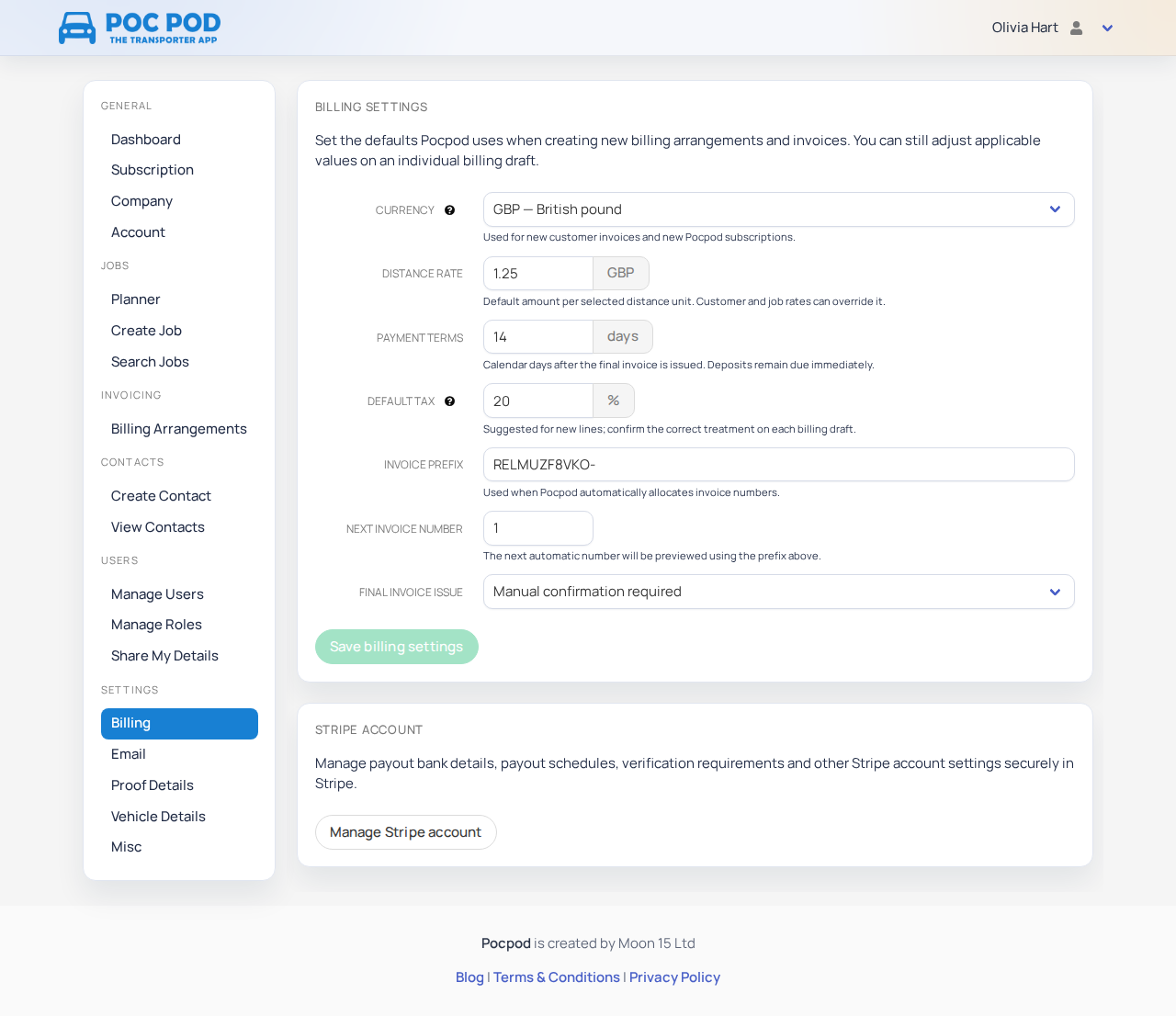
Go to Settings → Billing after payment setup. Review these defaults before creating live arrangements:
- Currency — used for new billing arrangements and new Pocpod subscriptions. Existing invoices and an active subscription keep their currency.
- Distance rate — the default price per distance unit. A customer-specific or job-specific rate takes priority when one exists.
- Payment terms — the number of calendar days a customer has to pay a final invoice. Deposits are due immediately.
- Default tax — suggested on new invoice lines. Confirm the correct treatment on every draft. UK businesses with no saved default may see a 20% suggestion, but should use it only when VAT registered and the work is standard-rated.
- Invoice prefix and Next invoice number — control Pocpod's next suggested invoice number. You can replace the suggestion when issuing an invoice, but each number must be unique for your business.
- Final invoice issue — choose automatic issue after every linked job is complete, or manual confirmation.
Select Save billing settings after making changes. Use Manage Stripe account on the same page to update payout details, see verification requirements or change the payout schedule in Stripe.
Leaving tax empty means no tax is applied. Entering 0% records a zero tax rate. These may have different accounting meanings, so use the treatment advised for your business.
To set a regular customer's rate, edit the contact and enter Default distance rate. To price one journey differently, enter Invoice rate in the job's journey details. When Pocpod estimates a new job's invoice amount, it uses the job rate first, then the customer rate, then the company rate from Billing Settings.
Create a billing arrangement with a new job#
On Jobs → Create Job, complete the customer, journey and vehicle details first. In the Billing section, choose to create a billing arrangement with the job.
Pocpod suggests the net invoice amount from the journey distance and the most specific available distance rate: job, then customer, then company default. Review and change the amount if needed. Choose the tax percentage and either full payment or a fixed deposit. The summary shows the amount that will be invoiced.
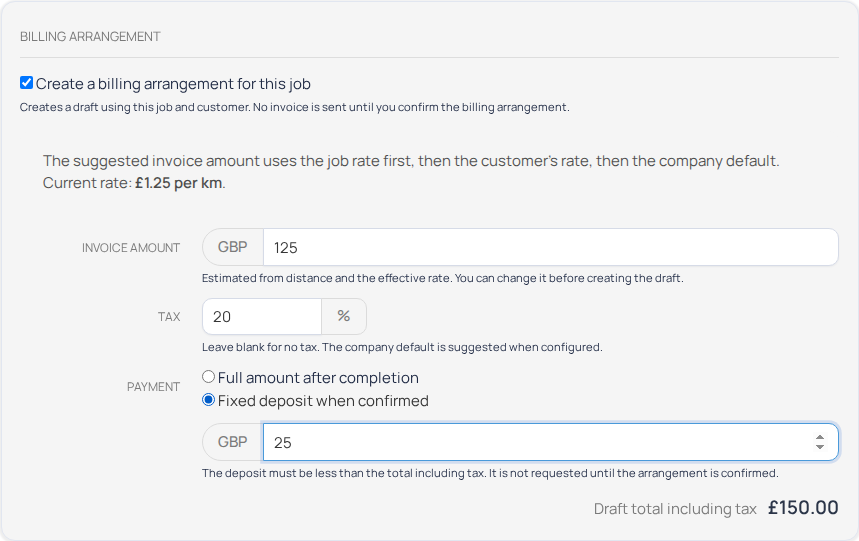
Saving the job creates a billing draft with the customer and a job-linked invoice line already filled in. It does not send an invoice. Review the draft before confirming it.
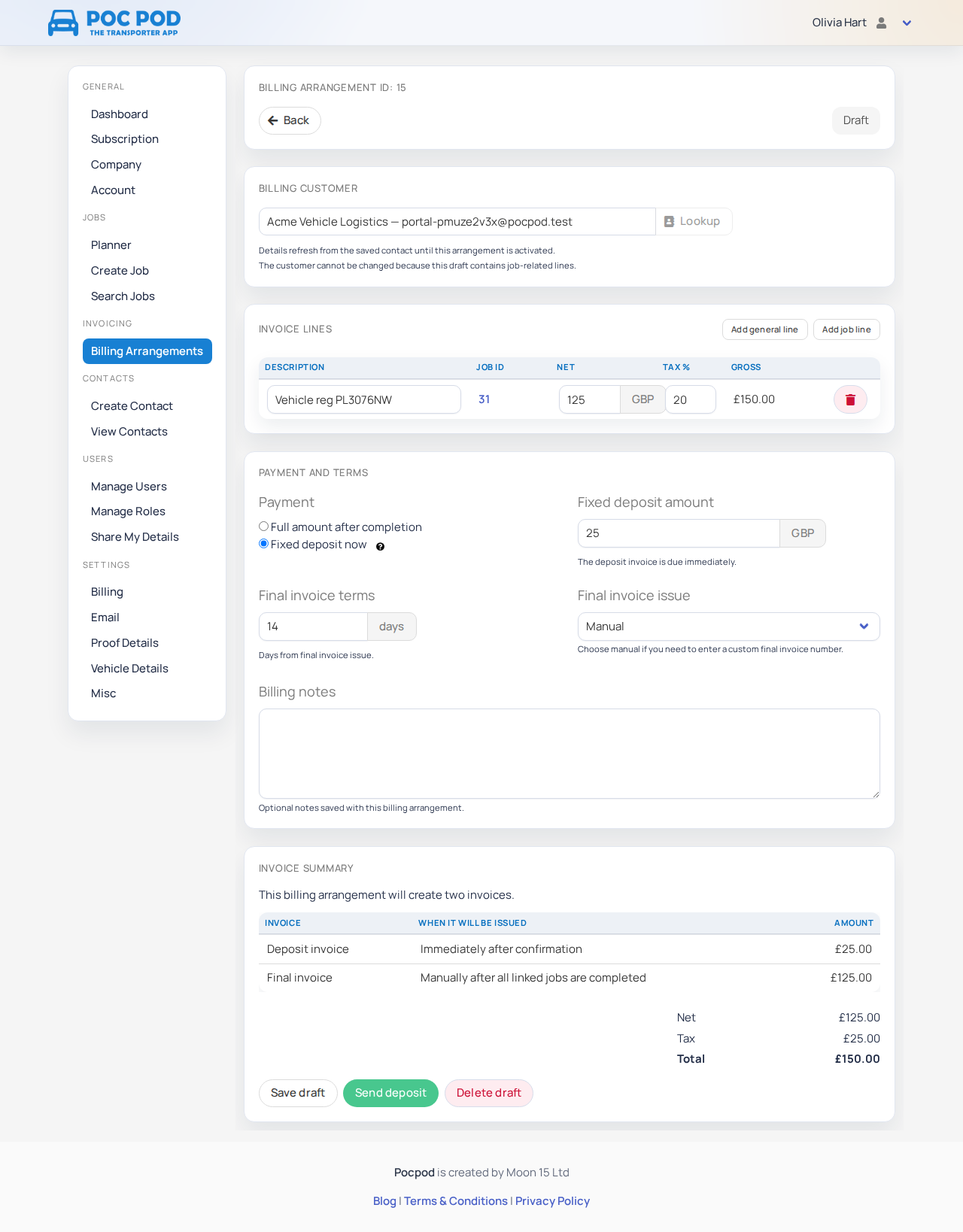
The planner's quick-add action opens the same Create Job screen with the date and user filled in. You can use its Billing section in exactly the same way.
Create a billing arrangement for existing work#
You can start from any of these places:
- On Jobs → Search Jobs, find the job and select + Add in its Billing column.
- On the Edit Job screen, open the Billing section and select + Add.
- Go to Invoicing → Billing Arrangements, select + Add new, choose a billing customer, then select Add job line.
Starting from a job prefills the customer and a job-linked line. Starting from Billing Arrangements lets you choose the customer first and then search that customer's jobs. You cannot add lines until a customer is selected, and you cannot change the customer after a job has been linked.

Use Add general line for a charge that is not tied to a Pocpod job. Each line needs a description and net amount. Review the tax percentage and resulting gross amount. Job-linked lines show the job ID and link back to the job. Every arrangement must contain at least one eligible job before it can be confirmed, even when it also contains general lines.
Review and confirm a billing draft#
Before confirming, check:
- The billing customer and invoice email are correct.
- Every job and charge appears once.
- Each line's net amount and tax percentage are correct.
- The invoice summary has the expected net, tax and total.
- The payment choice is either full payment or the intended fixed deposit.
- The final invoice terms and issue mode are correct.
Billing notes are customer-visible and are included with the billing-arrangement reference on the Stripe invoice. Leave them empty if there is nothing useful to tell the customer.
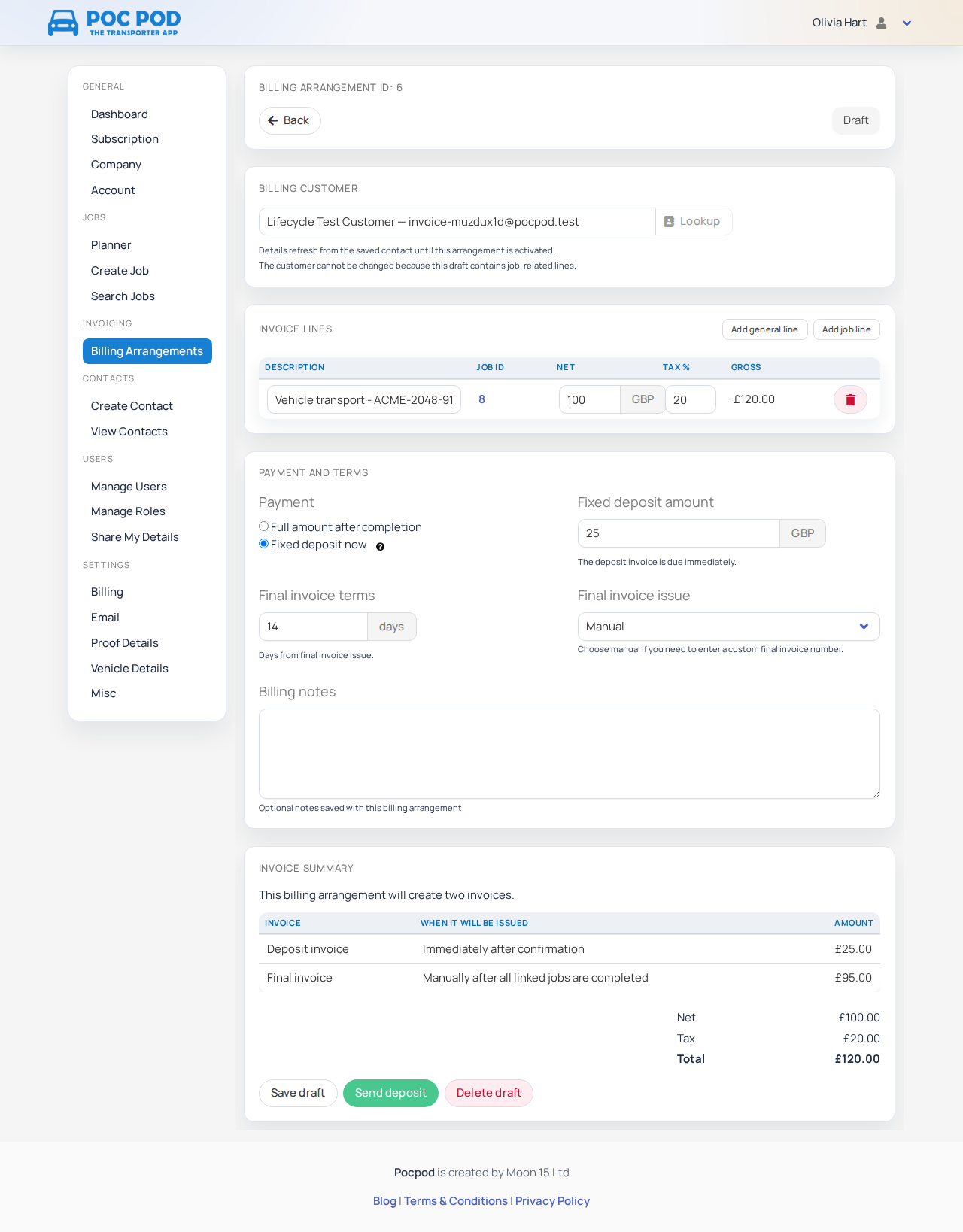
Select Save draft if more work is needed. A draft remains editable and can be deleted; deleting it also releases its jobs so they can be used in a different arrangement. When ready:
- select Send deposit to issue the deposit invoice; or
- select Confirm billing arrangement when no deposit is required.
Confirmation fixes the customer details and original charges. When sending a deposit, read the prompt and check or replace the suggested deposit invoice number before continuing. For a manual final invoice, you check its suggested number when you issue it. Automatically issued final invoices use Pocpod's next reserved number.
Find and track billing arrangements#
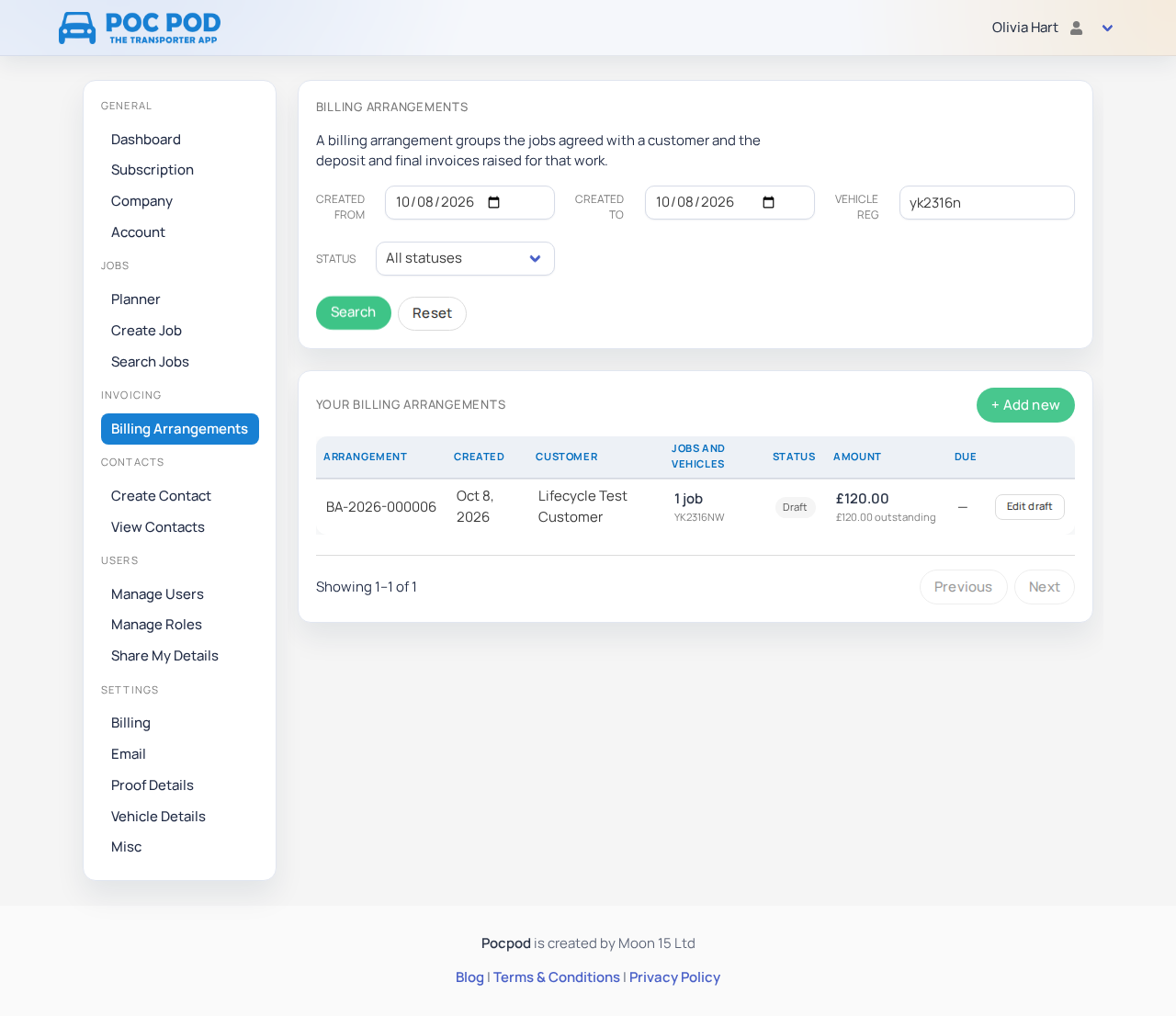
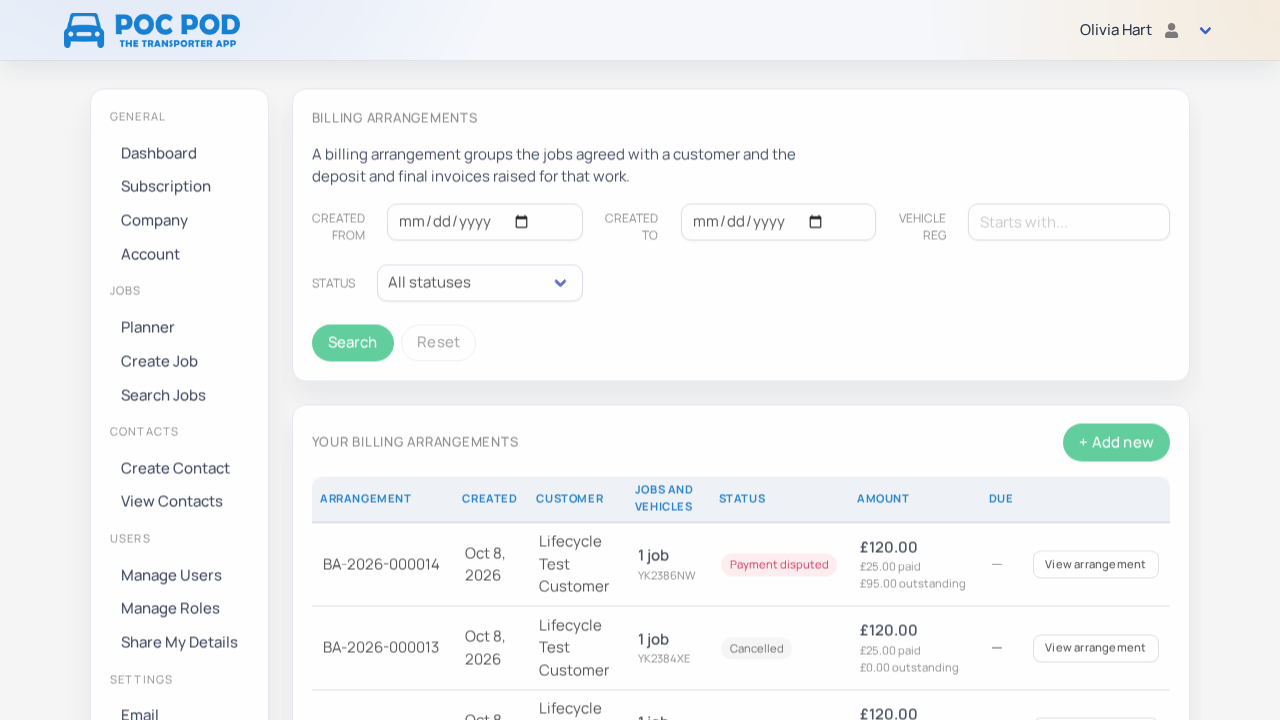
Go to Invoicing → Billing Arrangements. The newest arrangements appear first. Search by creation date range, a vehicle registration prefix or arrangement status. Select Edit draft for an unconfirmed arrangement or View arrangement after confirmation.
The arrangement page shows the complete total including tax, issued invoices, the expected final balance, added charges and linked jobs. Use the linked-jobs table to open a job and check whether its work is complete.
The arrangement status describes the next step. Draft is still editable, Waiting for jobs means the arrangement is confirmed but work is incomplete, Deposit due or Payment due means the customer owes money, Deposit paid – waiting for jobs is waiting for the linked work, and Balance ready means a manual final invoice can now be issued. Paid, Cancelled, Voided and Uncollectible are end states unless a later Stripe refund or payment reversal changes the record.
Collect a deposit#
After you send a deposit, the arrangement shows Deposit due. The invoice row contains the amount including tax and the payment due status.
- Open Stripe invoice opens the customer-facing hosted invoice.
- Copy payment link lets you send the secure link yourself.
- Resend email asks Stripe to send the open invoice again.
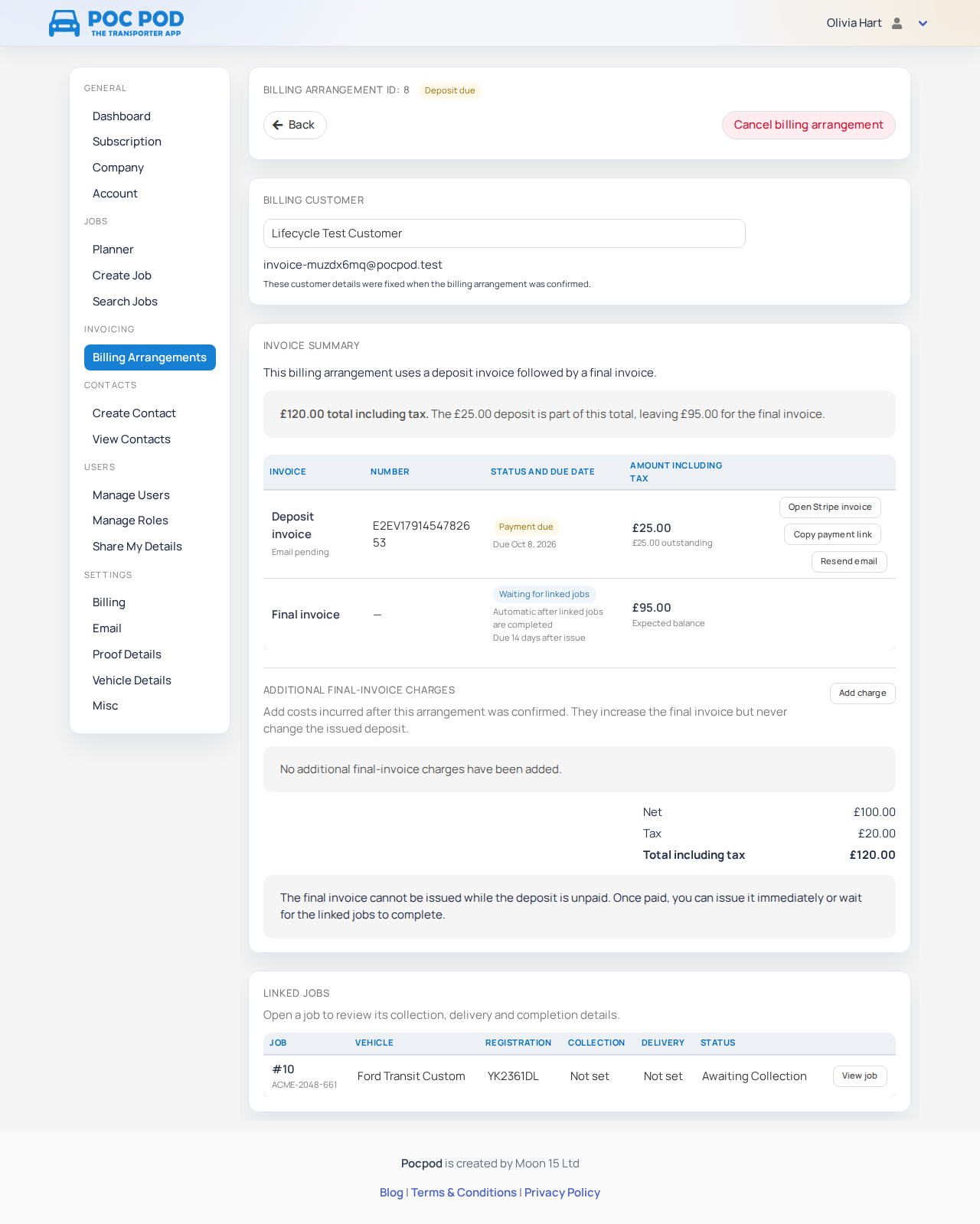
Pocpod updates the arrangement after Stripe reports payment. A paid deposit remains part of the total; only the balance is placed on the final invoice.
Add charges incurred during the work#
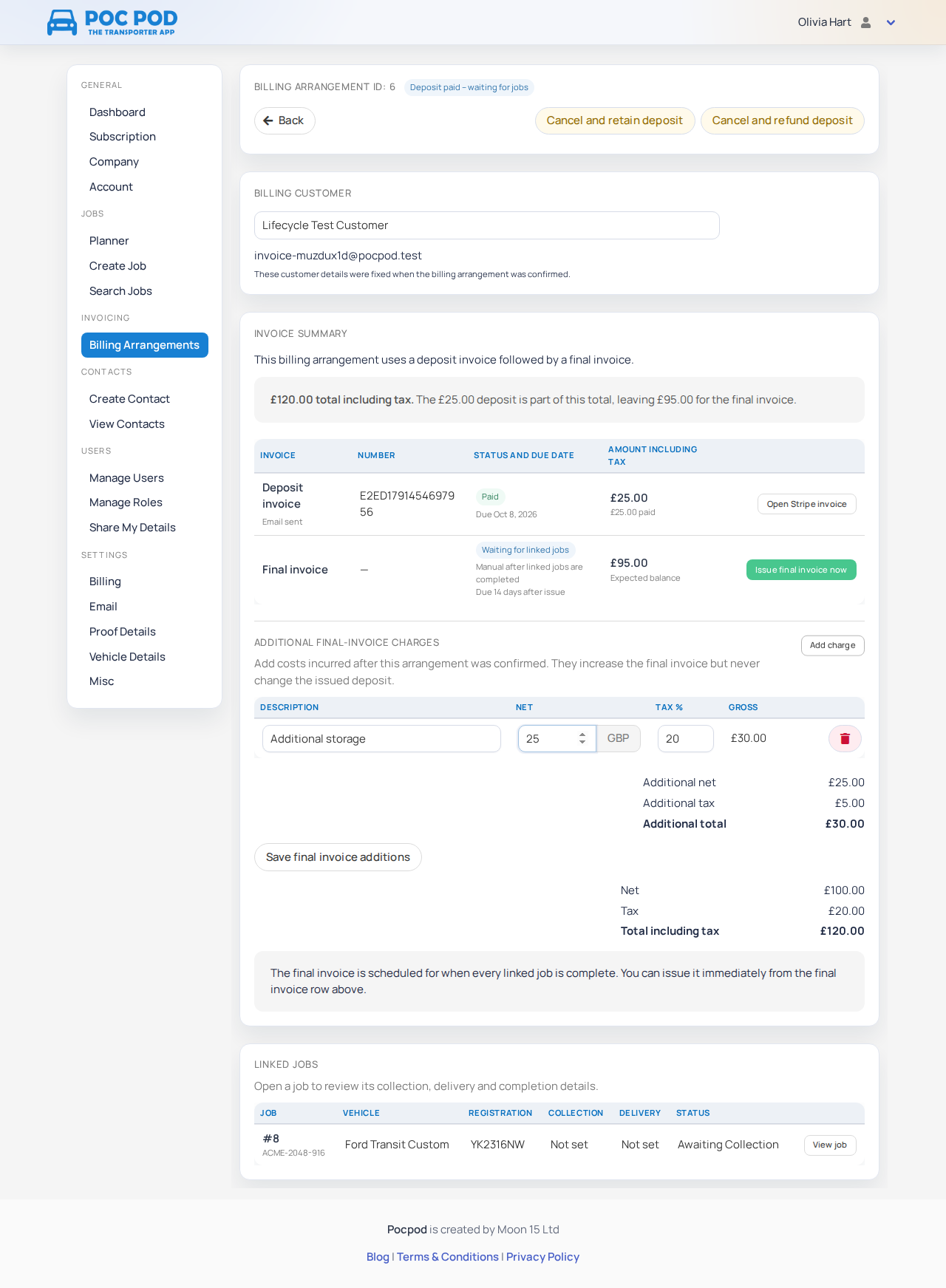
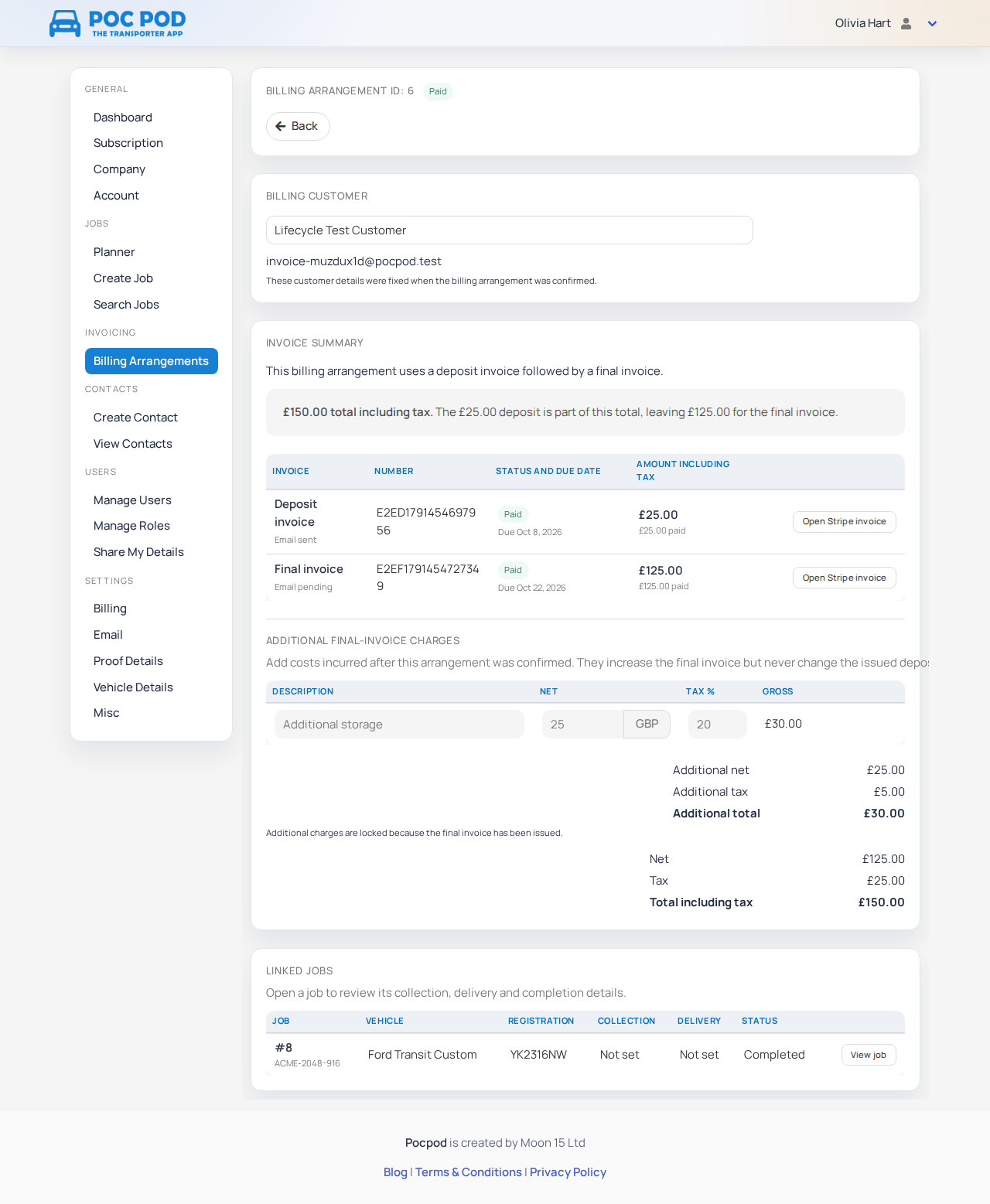
After confirmation and before the final invoice is issued, use Add charge under Additional final-invoice charges. Enter a description, net amount and tax percentage, then select Save final invoice additions.
Added charges increase the final invoice only. They never alter an issued deposit. They are locked as soon as the final invoice is issued.
Issue the final invoice#
The deposit must be paid before a deposit arrangement's final invoice can be issued.
With Automatic after all linked jobs complete, Pocpod issues the final invoice once every linked job is complete. With Manual confirmation required, the final invoice becomes ready and waits for you to select Request final balance.
A job becomes complete after its required collection and delivery work has been finished in the app and synced. See Use the mobile app if a linked job remains incomplete unexpectedly.
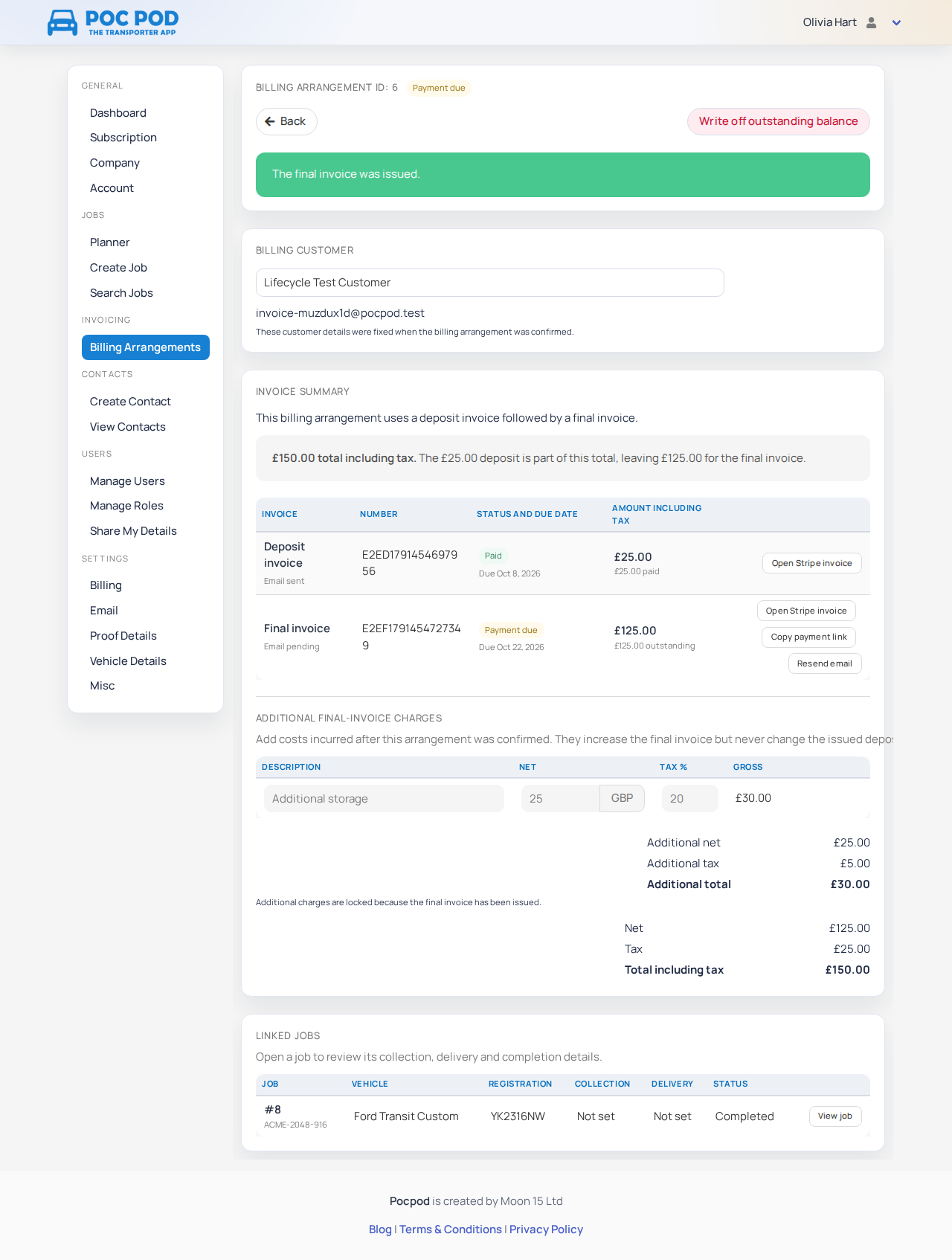
You can also select Issue final invoice now before every linked job is complete, including on an arrangement configured for automatic issue. The confirmation warns that the invoice will be sent immediately, no further charges can be added, and automatic issue will not run later. Use this only when you are certain the balance is final.
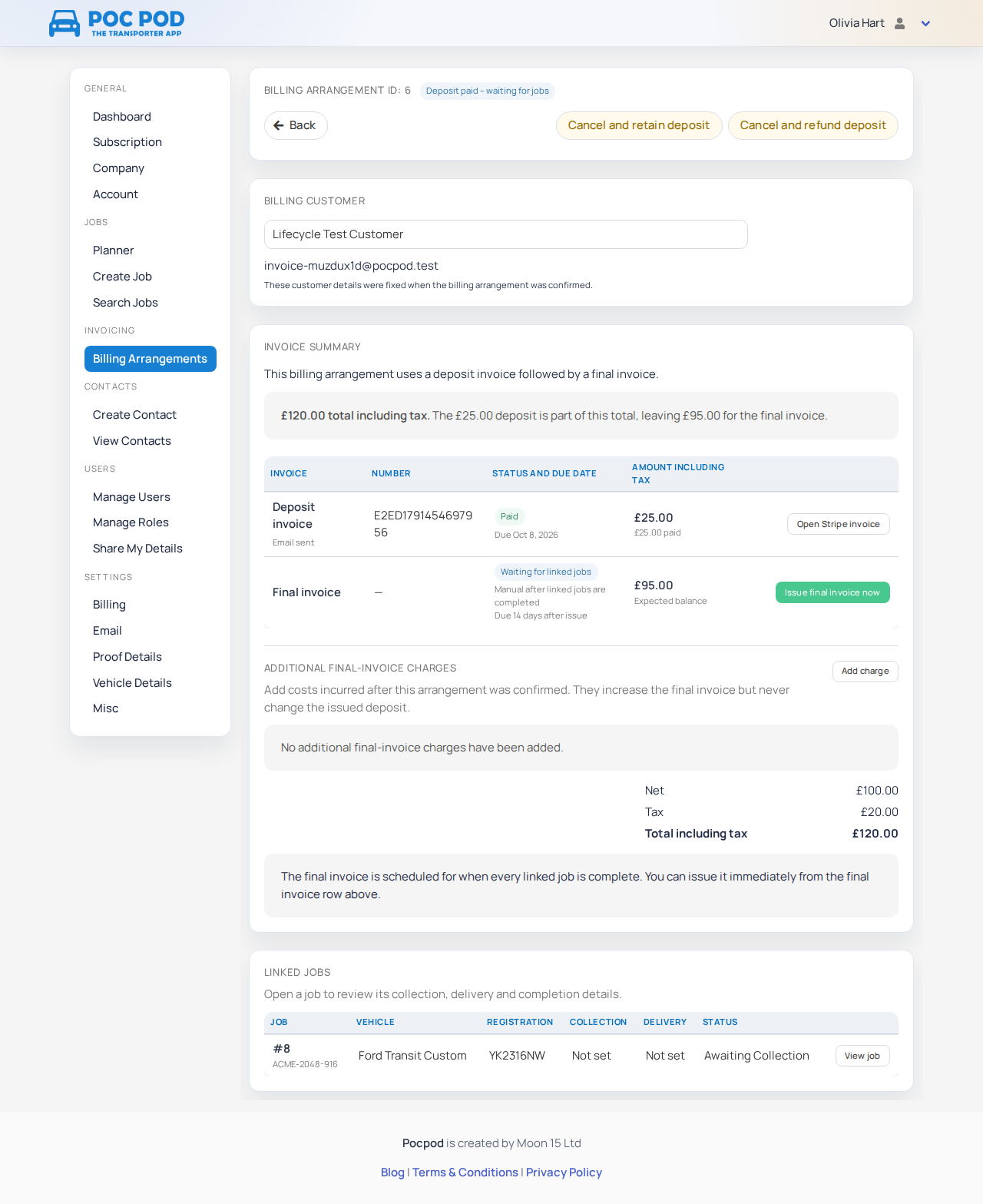
An arrangement without a deposit creates one invoice for the whole amount. An arrangement with a deposit creates a final invoice for the total minus the deposit, plus any later charges.
Cancel before the final invoice#
Use the actions at the top of the arrangement and read the confirmation before proceeding.
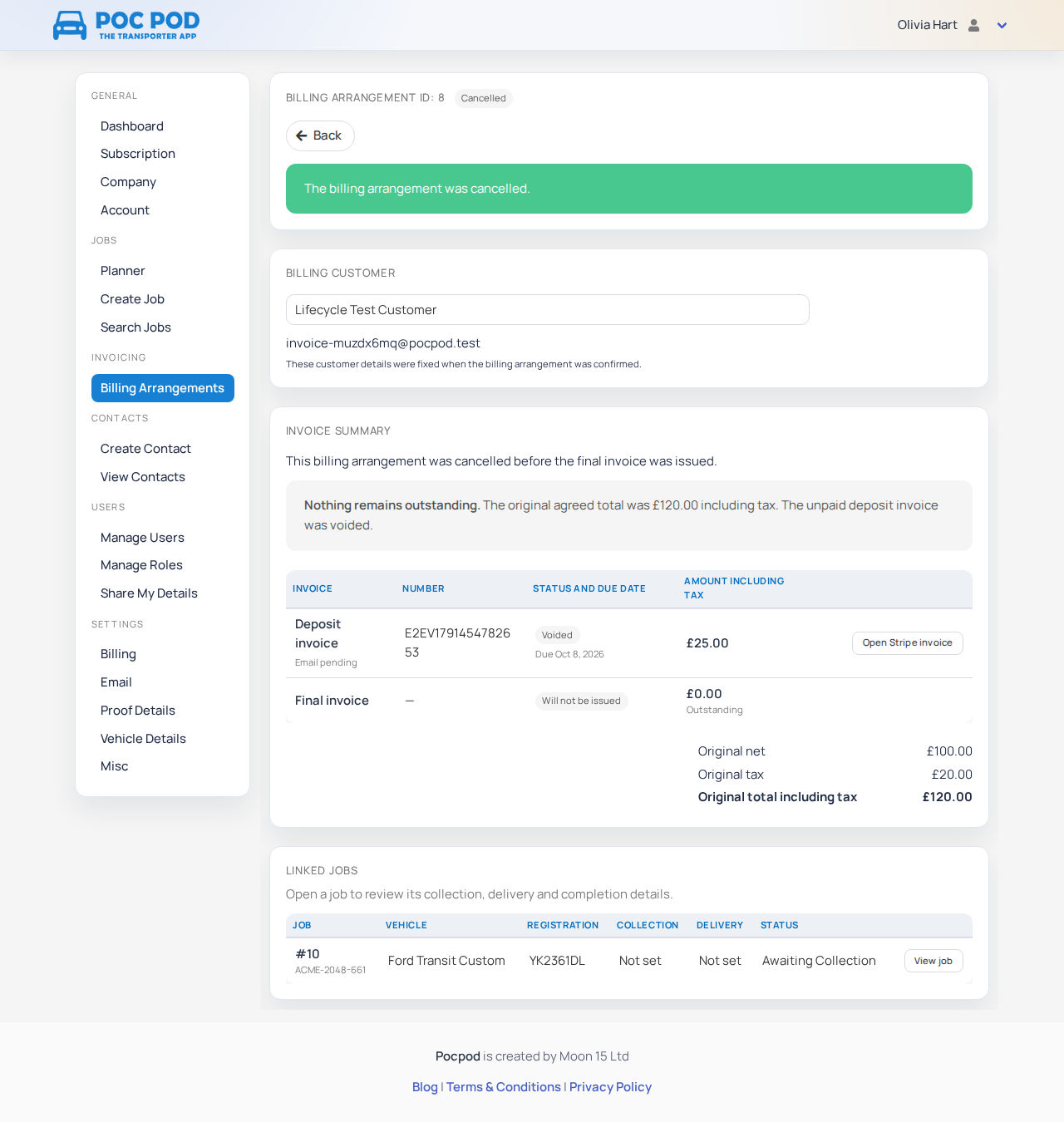
- If an issued deposit is unpaid, Cancel billing arrangement voids that invoice and prevents the final invoice.
- If no invoice has been issued, Cancel billing arrangement stops the arrangement and prevents a final invoice.
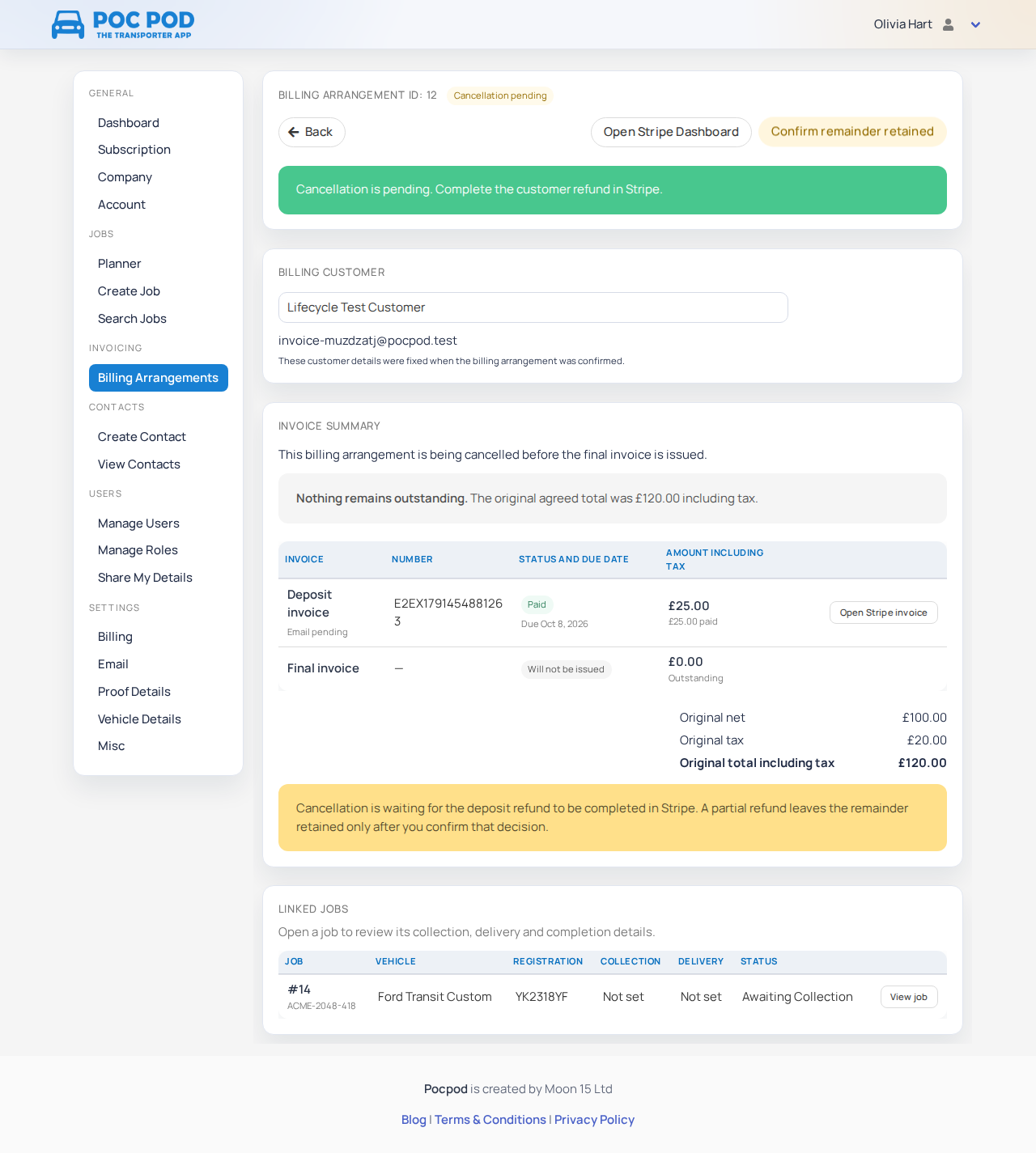
- If the deposit has been paid, choose Cancel and retain deposit or Cancel and refund deposit.
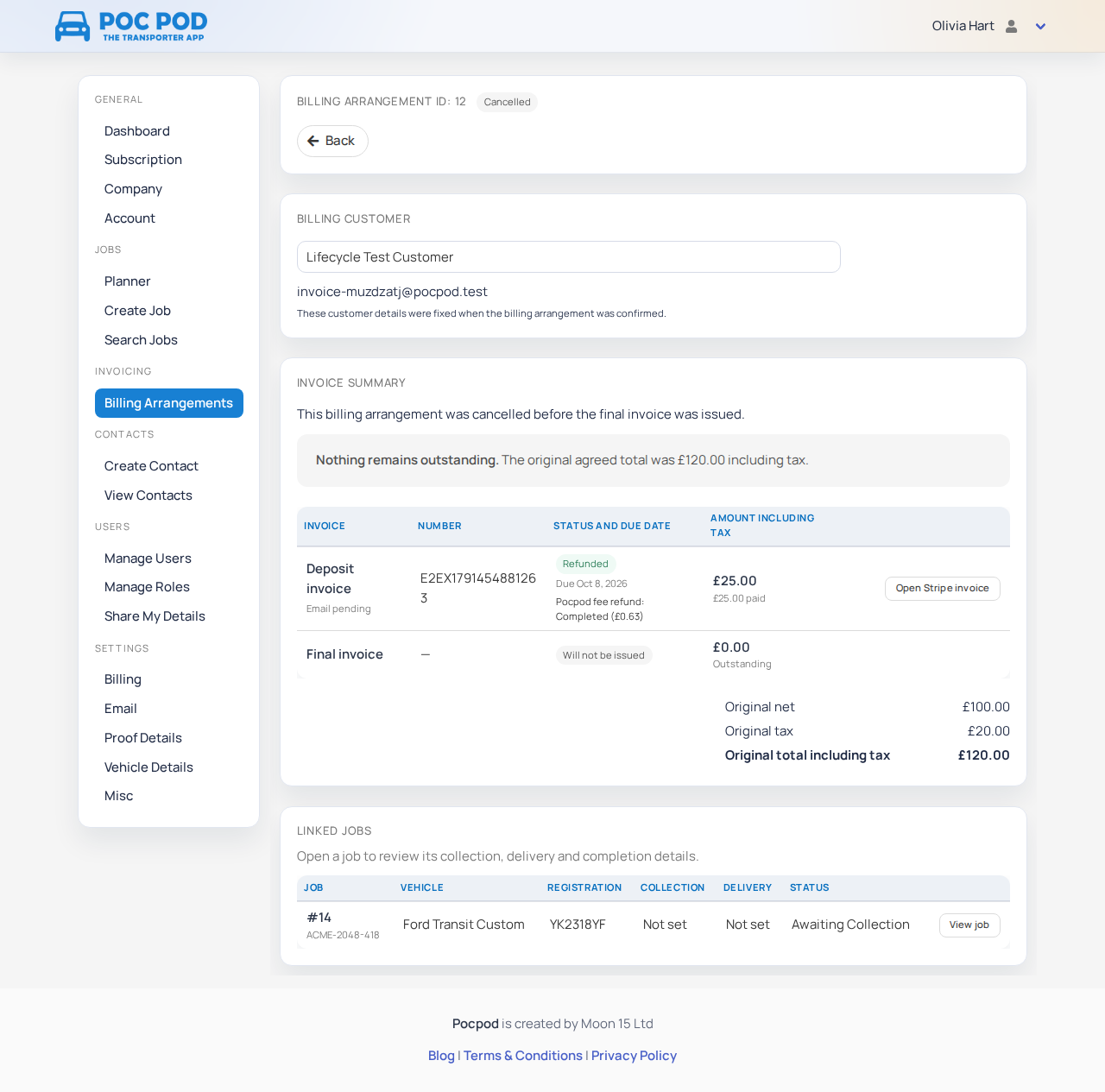
- A refund is completed in Stripe. After choosing Cancel and refund deposit, open the Stripe Dashboard, find the deposit payment and submit the required full or partial refund. Pocpod shows Cancellation pending until Stripe confirms the outcome. After a partial refund, return to the arrangement and use Confirm remainder retained to finish the cancellation.
A cancelled arrangement shows nothing outstanding because no final invoice will be issued.
Handle disputes and unpaid final invoices#
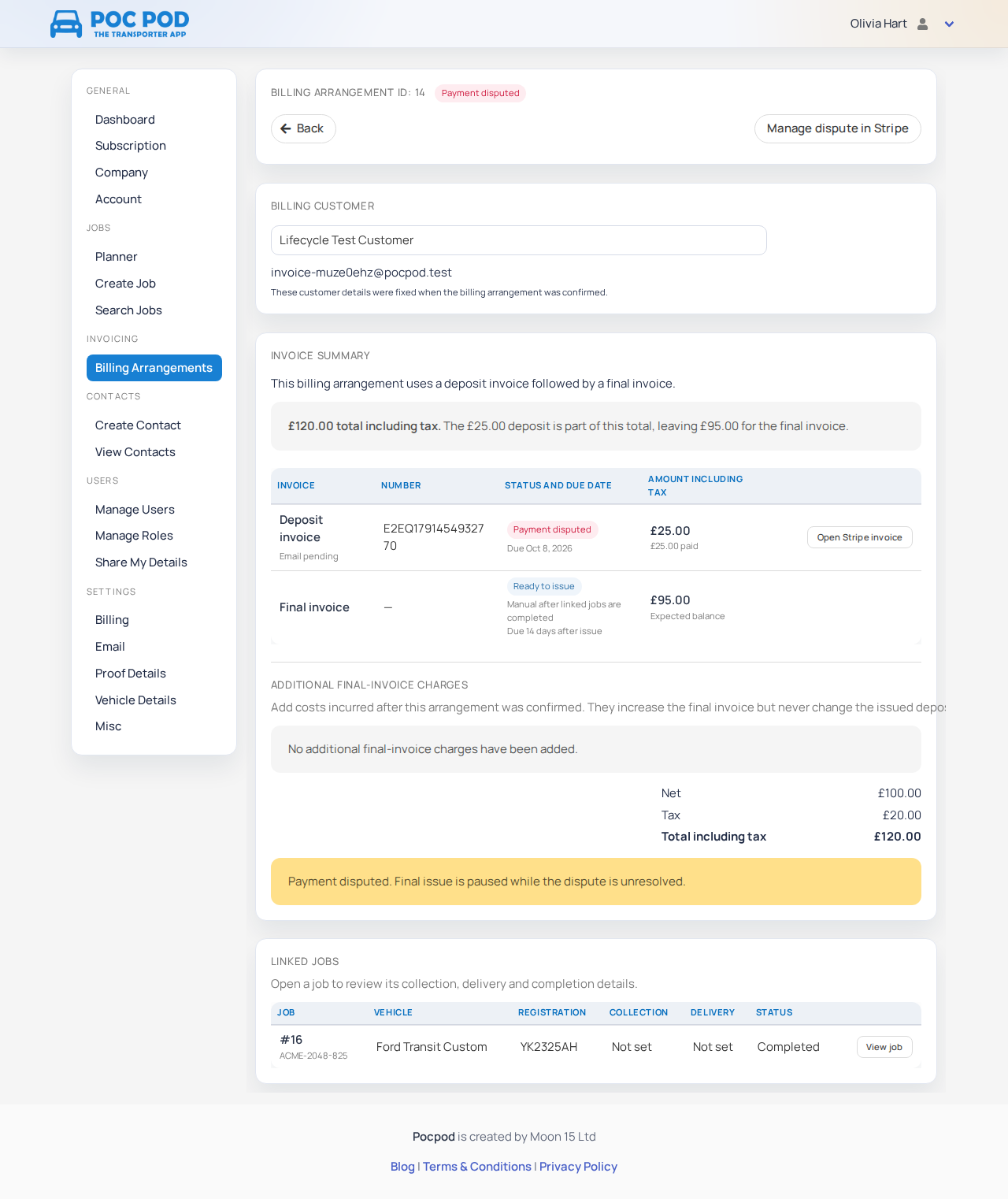
If a customer disputes a payment, Pocpod pauses final invoicing and shows Payment disputed. Select Manage dispute in Stripe to respond. Do not issue the final balance until the dispute is resolved.
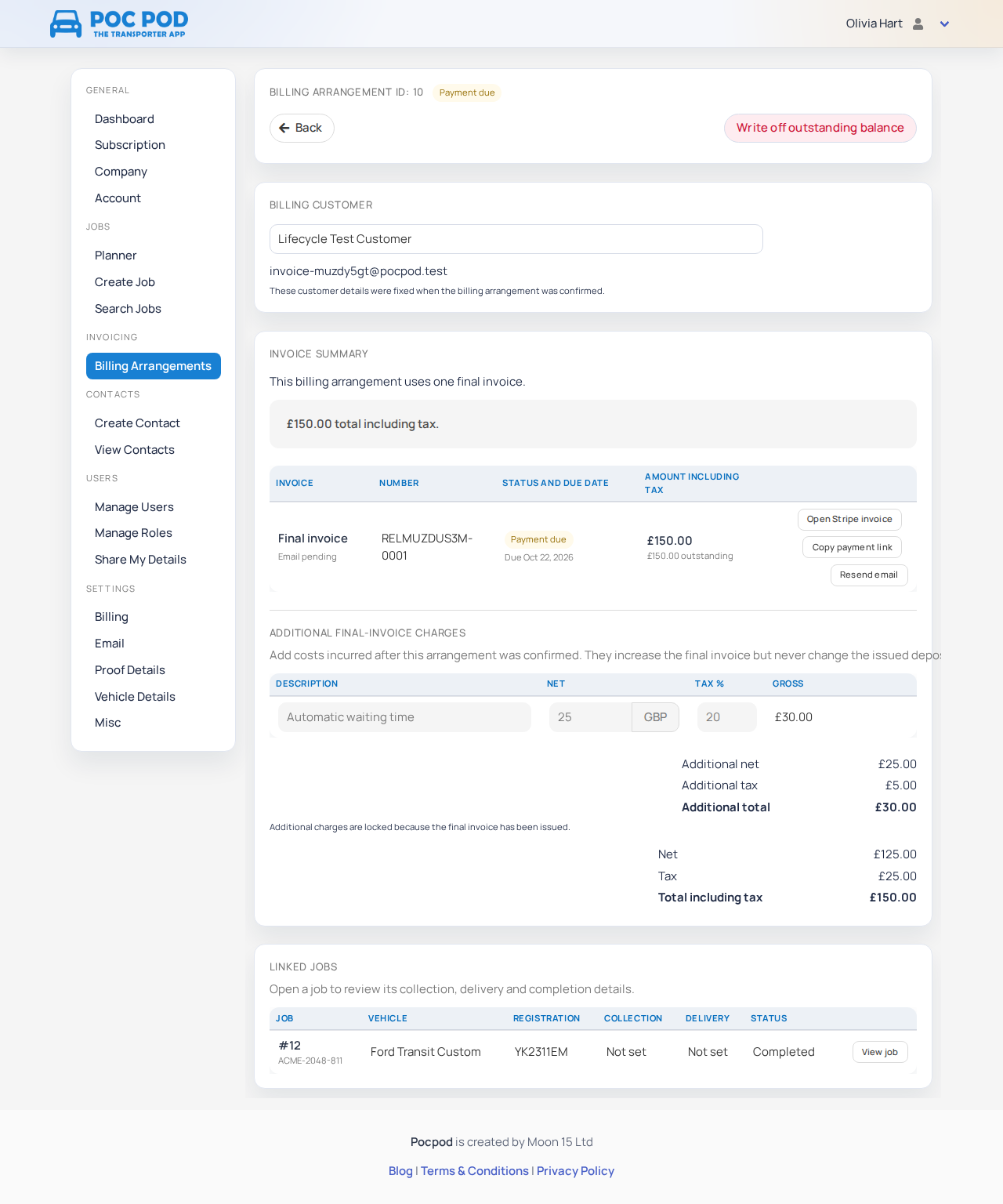
If you decide not to collect an issued final invoice's remaining balance, select Write off outstanding balance. This stops collection, is not a refund and cannot be undone from the arrangement page. A written-off invoice appears as Uncollectible.
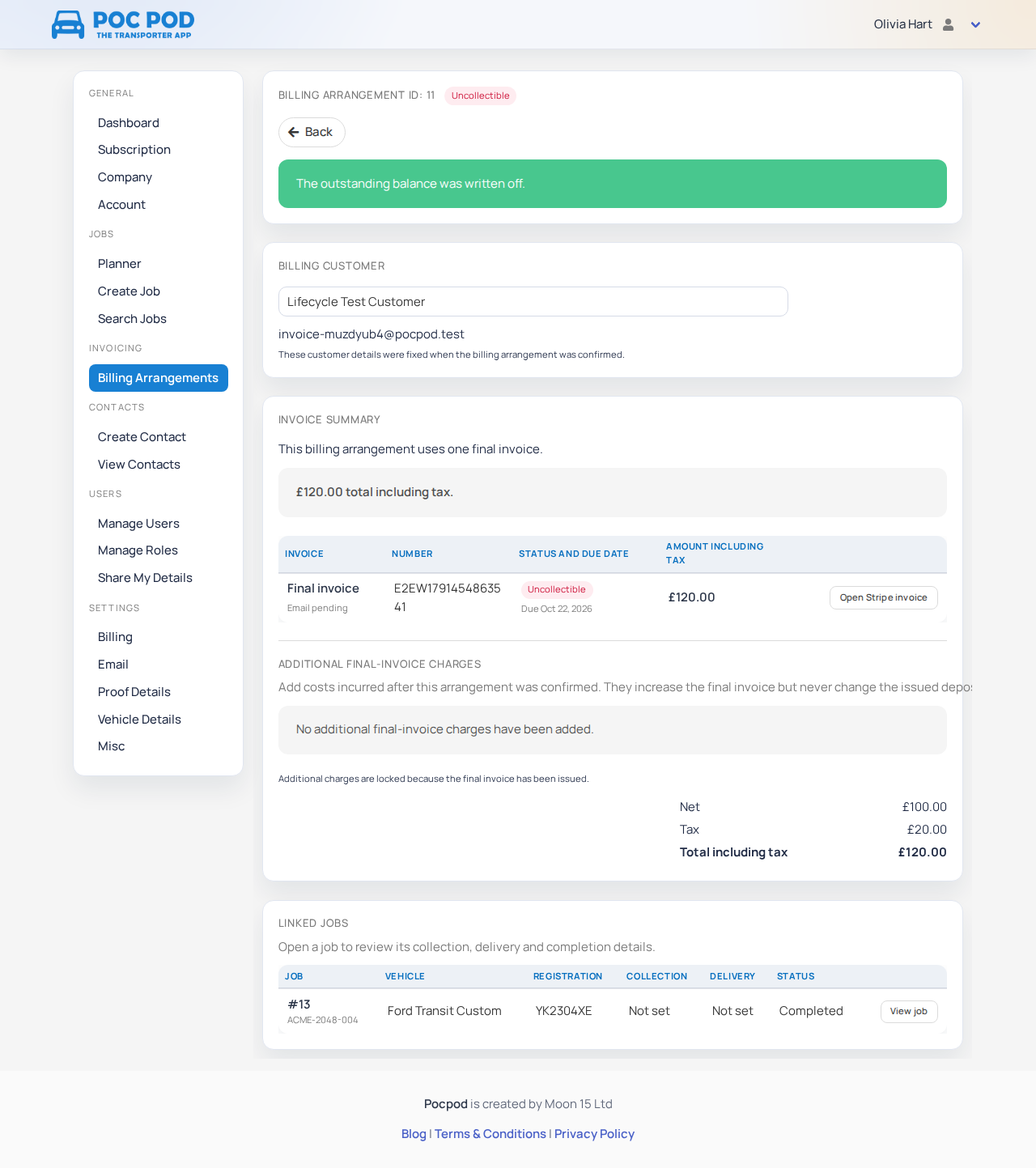
Once the final invoice has been issued, the arrangement can no longer be cancelled. To return money already paid on a deposit or final invoice, issue the customer refund from the Stripe Dashboard. Pocpod receives Stripe's update and shows the invoice as partially or fully refunded. It also returns the corresponding Pocpod fee automatically; if the arrangement shows Pocpod fee refund: Retry required, email contact@moon15.co.uk with the arrangement and invoice numbers.
Confirm payment and payouts#
When the customer pays, Stripe reports the result to Pocpod and the invoice and arrangement become Paid. The arrangement then shows no remaining balance.
Stripe pays the collected funds to the bank account connected during setup, following the payout schedule shown in the Stripe Dashboard. Go to Settings → Billing → Manage Stripe account to review payouts or change supported Stripe account settings.
The most common invoice statuses are Payment due, Partially paid, Paid, Overdue, Refunded, Voided and Uncollectible. Red attention states such as Payment disputed, Payment failed, Payment action required or Payment reversed need review before you rely on the displayed balance or continue the workflow.
Troubleshoot invoicing#
- Invoicing is missing from the menu: ask an owner to grant your role Manage customer billing.
- Billing Setup is still shown: open it and select Continue setup. Complete any information or verification requested by Stripe.
- A customer cannot be selected: save the customer as a Pocpod contact with the correct name and invoice email, then try again.
- A job is missing from Add job line: check that it belongs to the selected billing customer and is not already reserved by another active arrangement.
- The final invoice has not appeared: check that the deposit is paid, every linked job is complete for automatic issue, and no payment dispute is shown. You can issue early manually if the balance is final.
- Payment has just completed but still shows as due: allow a short time for Stripe's update to reach Pocpod, then reopen the arrangement.
- The customer did not receive an invoice email: check the saved invoice email and the invoice's email-delivery status on the arrangement. Use Settings → Billing → Manage Stripe account to check whether invoice emails are enabled in Stripe. For an open invoice, use Resend email or Copy payment link if needed. An Email sent status means Stripe sent it, not that the customer opened it.
- Resend email is unavailable: Pocpod only offers resend while an invoice is open. Use the existing invoice record for paid, refunded, voided or written-off invoices.
- The invoice number is rejected: enter a different unused number. Invoice numbers must be unique for your business.